What the Numbers Actually Mean
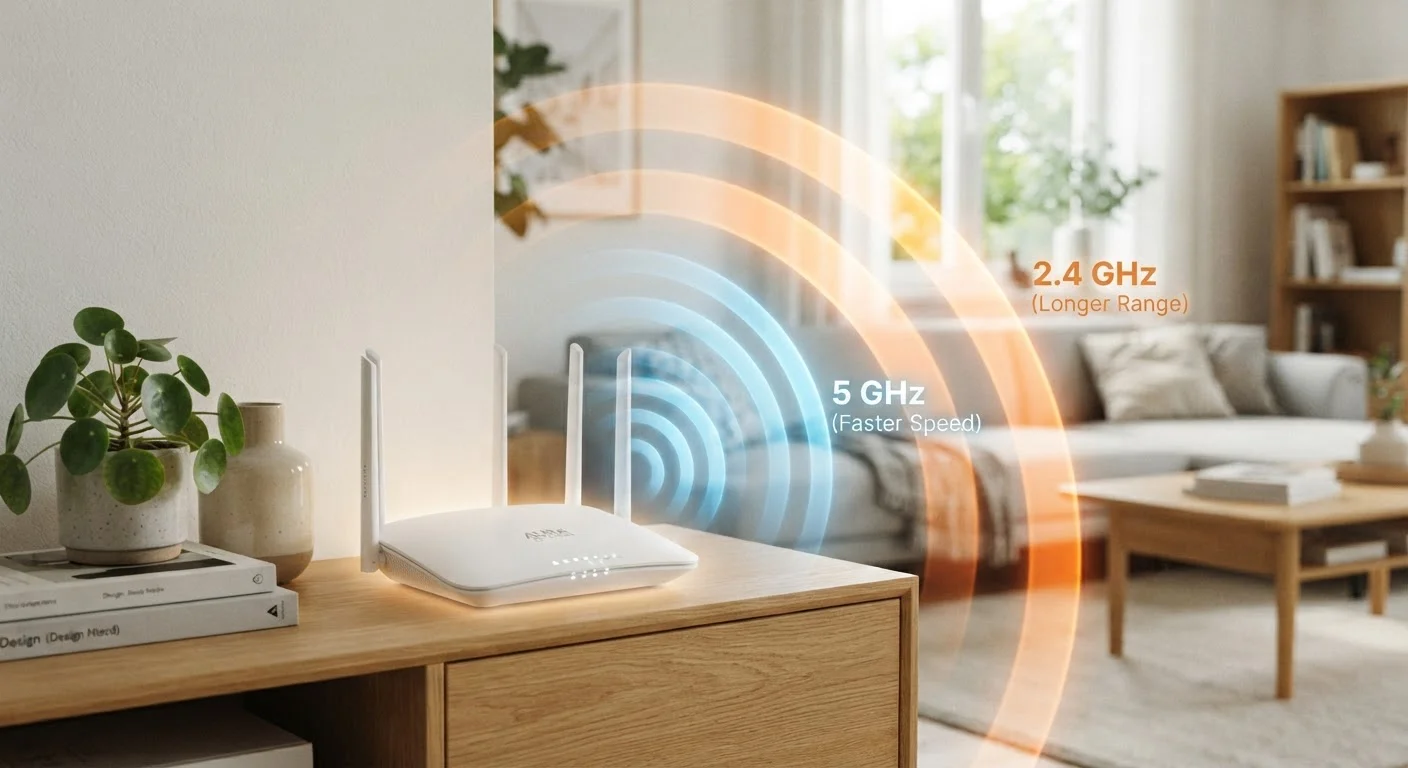
The numbers 2.4 GHz and 5 GHz refer to the radio frequency each band uses to transmit data wirelessly. Think of them as two different lanes on a highway — one wider and slower, the other narrower but much faster. Neither is universally superior; they make different trade-offs.
2.4 GHz uses a lower frequency. Lower frequencies have longer wavelengths, which means the signal travels farther and bends around obstacles more effectively. That's a real advantage in a multi-story home or anywhere walls and floors stand between a device and the router. The downside: many devices, baby monitors, microwaves, and neighboring Wi-Fi networks all compete on the same frequency, creating congestion that slows everyone down.
5 GHz uses a higher frequency with shorter wavelengths. It can carry far more data per second — often three to four times the throughput of 2.4 GHz in practice — but that signal weakens quickly over distance and struggles to pass through dense building materials. Within the same room or a short distance, though, 5 GHz is noticeably faster and less cluttered.
For a deeper look at how these trade-offs play out in specific situations, see Wi-Fi Bands Demystified.
| Criterion | 2.4 GHz | 5 GHz |
|---|---|---|
| Range | Longer range, better wall penetration | Shorter range, weakens over distance |
| Speed (throughput) | Lower — typically adequate for basic tasks | Higher — 3–4x faster in practice |
| Congestion | More congested — shared with many devices | Less congested — more available channels |
| Interference sources | Microwaves, baby monitors, neighbors | Fewer common interference sources |
| Best use case | Far devices, IoT, smart home sensors | Streaming, gaming, nearby devices |
| Device compatibility | Universal — virtually all Wi-Fi devices | Modern devices; some older/budget gear excluded |
Room-by-Room Guidance
Understanding the bands is useful; knowing how to apply that knowledge room by room is where it becomes practical.
~3–4x
Speed advantage of 5 GHz over 2.4 GHz
Under typical home conditions, 5 GHz delivers several times the data throughput of 2.4 GHz at close range, though this gap narrows with distance.
13
Channels available on 2.4 GHz (in the U.S.)
With only 3 non-overlapping channels available in the 2.4 GHz band, neighboring networks frequently interfere with each other in dense housing.
25+
Non-overlapping channels on 5 GHz
The 5 GHz band offers significantly more non-overlapping channels, which reduces competition between neighboring routers in apartments and suburbs.
Living Room
If your TV or streaming device is close to the router, connect it to 5 GHz. Streaming 4K HDR content requires sustained bandwidth, and 5 GHz handles that comfortably with less interference. If the living room is far from your router with walls in between, 2.4 GHz may actually deliver more stable playback.
Home Office
Video conferencing and large file transfers benefit most from speed and consistency. Use 5 GHz if the signal reaches you well. If reliability matters more than raw speed, consider going wired — see when an Ethernet cable still wins for that comparison.
Bedroom at the Far End of the House
A phone charging overnight, a smart speaker, or a laptop used for casual browsing doesn't need high speeds — it needs a stable connection. 2.4 GHz is the better fit here, as it's more likely to maintain signal through multiple walls.
Kitchen and Utility Areas
Smart appliances, connected displays, and voice assistants typically only support 2.4 GHz by design. Assign them there without hesitation. A microwave running nearby can briefly interfere with 2.4 GHz signals, but modern routers manage this reasonably well.
Garage or Basement
Concrete, metal framing, and distance all attenuate Wi-Fi signals. 2.4 GHz will penetrate better, though coverage may still be marginal. If you have persistent dead zones, a mesh system may help — explore mesh Wi-Fi vs. a traditional router to weigh the options.
Practical Tips for Managing Both Bands
Most dual-band routers broadcast both frequencies simultaneously. Here's how to make that work in your favor:
- Give each band a distinct name (SSID). Labeling them something like "HomeNetwork_2.4" and "HomeNetwork_5" lets you manually connect each device to the appropriate band rather than letting it choose automatically — which isn't always optimal.
- Use band steering with caution. Many routers offer "smart connect" or "band steering" that automatically assigns devices to a band. This is convenient but can sometimes push devices onto 5 GHz when 2.4 GHz would actually be more stable. Check your router's admin panel to see if you can adjust or disable it.
- Check device compatibility first. Before troubleshooting a smart home device that won't connect, verify which bands it supports. Many budget IoT products are 2.4 GHz only, and attempting to connect them to a 5 GHz network simply won't work.
- Router placement matters. Even the best band selection can't fully compensate for a poorly placed router. Central placement at a mid-height position makes both bands more useful across your home. Router placement principles covers this in detail.
Also worth noting: a growing number of routers now support a third band — 6 GHz, introduced with Wi-Fi 6E — which offers even less congestion for compatible devices in close range. For now, 2.4 GHz and 5 GHz cover the vast majority of home setups.
What About Wi-Fi 6 and 6E?
Wi-Fi 6 (802.11ax) improves efficiency on both 2.4 GHz and 5 GHz bands, especially in environments with many connected devices. Wi-Fi 6E adds access to the 6 GHz band for even less congestion, but only newer devices can use it. The 2.4 GHz vs. 5 GHz trade-off still applies within any of these generations — upgrading your router's Wi-Fi version doesn't change the fundamental physics of frequency and range.