Why Placement Matters More Than Most People Expect
Most households treat the router like a utility box — plugged in wherever the cable happens to emerge from the wall, then forgotten. That approach quietly costs you coverage, speed, and reliability every single day. Wi-Fi is a radio signal, and like any radio signal, it weakens as it passes through materials and competes with interference. The physical location of your router determines how much of your home actually gets a usable signal.
If your home internet feels inconsistent — fast in one room, sluggish in another — placement is almost always the first thing worth examining before anything else. And the good news is that repositioning costs nothing.
Your Router Is Only Part of the Picture
The tips here focus on your router — but your modem or gateway device also plays a role in home network performance. If you're unsure how those devices relate to each other, see our primer on what a modem, router, and gateway each do. Understanding the full chain helps you pinpoint where a problem actually starts.
Proven Placement Principles
These aren't folk remedies — they're grounded in how radio frequency signals actually behave through building materials and open space. Apply the ones that fit your home's layout.
Place your router as close to the center of your home as possible.
Wi-Fi signals radiate outward in all directions. A router tucked in a corner or at one end of the house wastes a large portion of that signal pushing it through exterior walls and out into the yard. Centering the router distributes coverage more evenly across every room.
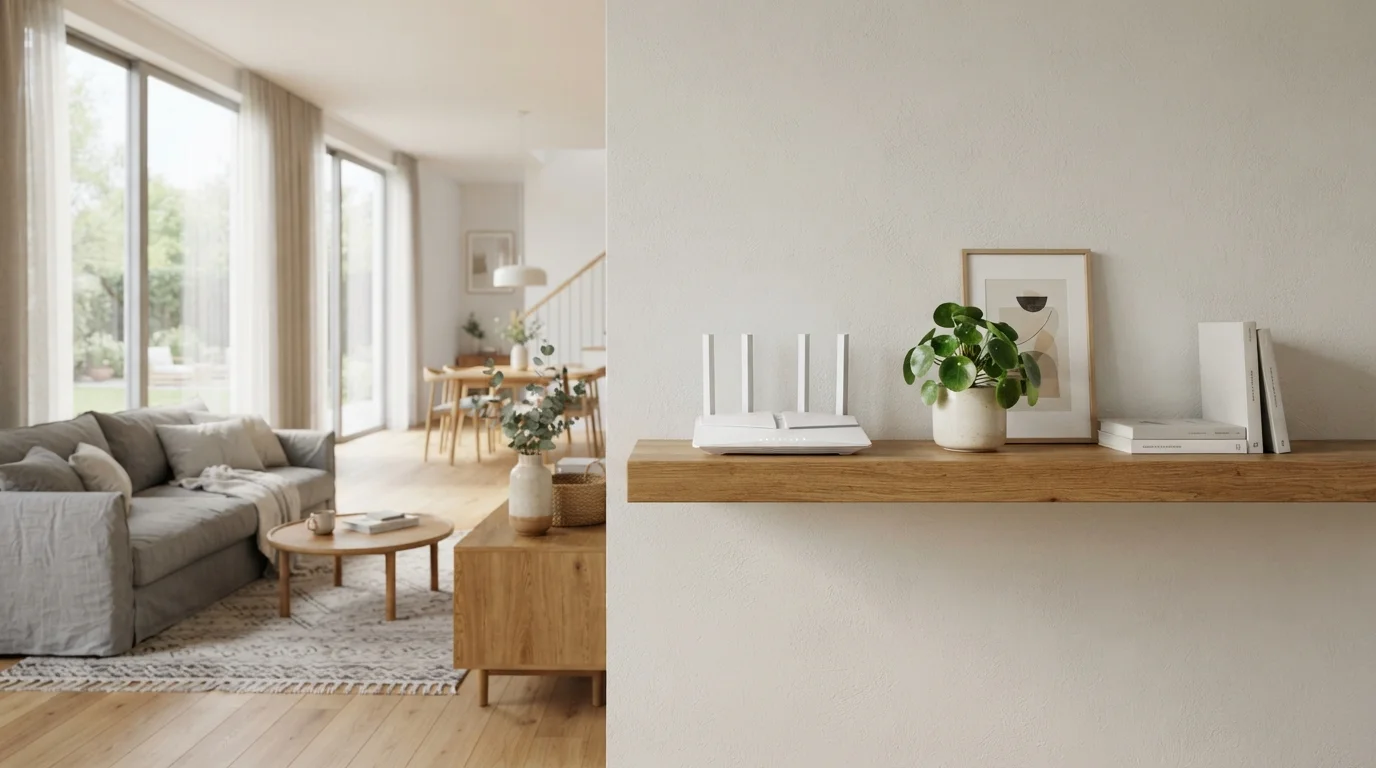
Elevate the router off the floor — a shelf, desk, or countertop works well.
Signals from a router placed on the floor lose strength faster because they must travel upward through the building materials of ceilings and floors. An elevated position lets the signal spread more naturally across the living space.
Keep the router away from large metal objects, microwaves, and cordless phones.
Metal reflects and absorbs Wi-Fi signals. Appliances like microwaves can emit interference on the 2.4 GHz frequency band, which overlaps with common Wi-Fi channels. Even a metal filing cabinet or refrigerator nearby can meaningfully degrade your signal.
Change the default router admin password immediately after setup.
Routers ship with well-known default credentials that are publicly listed. Leaving them unchanged makes it easy for anyone on your network — or exploiting a vulnerability — to access your router's settings. A strong, unique admin password closes this common security gap.
Select a less congested Wi-Fi channel, especially on the 2.4 GHz band.
In apartment buildings or densely populated neighborhoods, many routers compete on the same wireless channels. Channel congestion slows all devices on that channel. On 2.4 GHz, channels 1, 6, and 11 are non-overlapping — choosing the least-used one among your neighbors can improve speeds noticeably.
Use the 5 GHz band for high-demand devices close to the router, and 2.4 GHz for devices farther away.
The 5 GHz band offers faster speeds but shorter range; 2.4 GHz travels farther but is more prone to interference. Intentionally matching devices to the right band — rather than letting everything default to one — helps each device get the most out of its connection.
Configuration Settings Worth Checking
Physical placement handles the signal; configuration handles security, stability, and performance. Many routers ship with default settings that prioritize convenience over both security and efficiency. Spending ten minutes in your router's admin panel — the control dashboard built into the device, accessed through a browser — can make a meaningful difference.
If your router experiences frequent slowdowns or random disconnections, a simple restart can clear temporary issues. Our explainer on why restarting your router actually works covers when this fix applies and when a different approach is needed.
When Placement and Configuration Aren't Enough
Some homes — particularly multi-story houses, older construction with thick walls, or spaces over 2,000 square feet — are difficult to serve with a single router regardless of where it sits. In those cases, a mesh Wi-Fi system versus a traditional single router becomes worth considering. Mesh systems use multiple nodes placed throughout the home to create one seamless network, rather than relying on a single device to reach every corner.
“The single most impactful thing most people can do to improve their home Wi-Fi isn't buying new gear — it's moving what they already have to a better spot.”
— Wi-Fi Alliance, Industry body representing Wi-Fi technology standards and education
Before assuming you need new hardware, though, revisit the basics. A surprising number of persistent Wi-Fi problems turn out to be a misplaced router, a congested channel, or outdated firmware — all fixable without spending anything.
It's also worth separating genuine network issues from common misconceptions. Our piece on common Wi-Fi speed myths can help you avoid chasing solutions to problems that don't actually exist.