Why Bluetooth Drops in the First Place
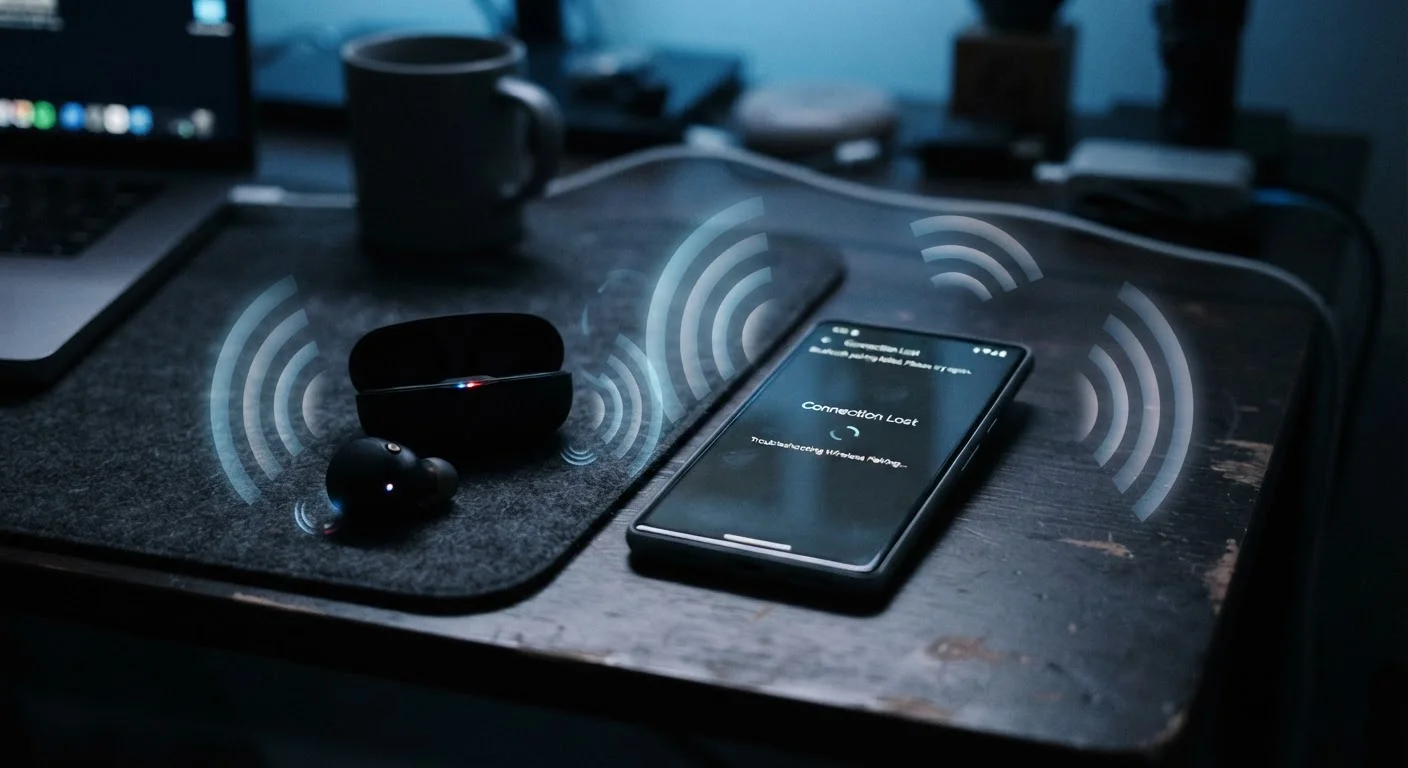
Bluetooth is a short-range radio technology that transmits data on the 2.4 GHz frequency band — the same crowded slice of spectrum used by many Wi-Fi routers, baby monitors, and microwave ovens. When signals from these other sources collide with your Bluetooth connection, the result is interference: audio cuts out, a keyboard lags, or a speaker suddenly disconnects.
Unlike Wi-Fi, which is engineered to stream large amounts of data across a home, Bluetooth is designed for short bursts of communication between nearby devices. That design choice makes it efficient and low-power, but also more sensitive to environmental conditions. Understanding those conditions is the first step toward a more reliable connection.
For a deeper look at how radio interference affects wireless signals in general, see our explainer on Wi-Fi signal loss — many of the same physics apply to Bluetooth.
Staying too far from the paired device or putting obstacles between them.
Why it happens: Bluetooth's stated range — often listed as up to 30 feet — assumes a clear, open path. Walls, furniture, and even your own body absorb and scatter the signal, cutting effective range significantly.
Using Bluetooth in a space crowded with other 2.4 GHz devices.
Why it happens: Many households run Wi-Fi routers, cordless phones, and smart home hubs all on the 2.4 GHz band simultaneously. Bluetooth uses frequency hopping to avoid collisions, but heavy interference can still overwhelm it.
Having too many devices paired and active at the same time.
Why it happens: People often pair a phone to headphones, a car stereo, a speaker, and a laptop without realizing the phone tries to maintain awareness of all those devices at once. This can cause the connection to jump unexpectedly or fail to establish cleanly.
Ignoring firmware and driver updates on Bluetooth devices and host systems.
Why it happens: Firmware updates for headphones, speakers, or keyboards aren't visible the way app updates are, so they get overlooked. Similarly, computer Bluetooth drivers rarely announce themselves.
Not clearing stale or corrupted pairings when connectivity problems start.
Why it happens: A pairing entry stores connection data that can become corrupted after a software update or device reset. The device may still appear in the list and attempt to connect, but the underlying handshake data no longer works correctly.
Building Better Bluetooth Habits
Once you understand why drops happen, the fixes are largely practical. Start by auditing the devices currently paired to your phone or laptop. Most operating systems let you view all saved pairings in the Bluetooth settings menu — delete any device you no longer use regularly. Each saved pairing takes up a small slice of your device's Bluetooth management resources, and older, unused entries can sometimes confuse the connection process.
Don't Ignore Interference From Your Own Router
If your Wi-Fi router is set to the 2.4 GHz band and your Bluetooth devices are nearby, the two can actively interfere with each other — especially during heavy data transfers like video streaming. Consider relocating your router or using a 5 GHz Wi-Fi network for bandwidth-heavy tasks when Bluetooth reliability matters.
Keep your devices updated. Both the firmware inside your Bluetooth accessory (headphones, speakers, keyboards) and the Bluetooth drivers on your computer or phone affect how reliably the connection runs. Manufacturers release these updates specifically to fix bugs — including disconnect issues — so enabling automatic updates where possible is worth doing.
Finally, pay attention to battery levels on both ends of the connection. When a Bluetooth device's battery drops below roughly 20%, many devices reduce their transmit power to conserve energy, which shortens effective range and increases the chance of dropout. Keeping accessories charged before use is one of the simplest reliability improvements available.
If you're also dealing with Wi-Fi instability at home, our room-by-room Wi-Fi troubleshooting walkthrough can help you address both problems systematically. And if you're curious how the 2.4 GHz band affects your router as well, our Wi-Fi bands explainer covers that in plain language.
A Full Re-Pair Often Solves Persistent Drops
If a Bluetooth device that used to work perfectly keeps disconnecting despite good range and low interference, a corrupted pairing is frequently to blame. Delete the device from your paired list, reset the accessory to factory Bluetooth settings (usually a button hold sequence described in the manual), and pair it again from scratch. This single step resolves the majority of stubborn, unexplained dropout issues.