What the Numbers Actually Mean
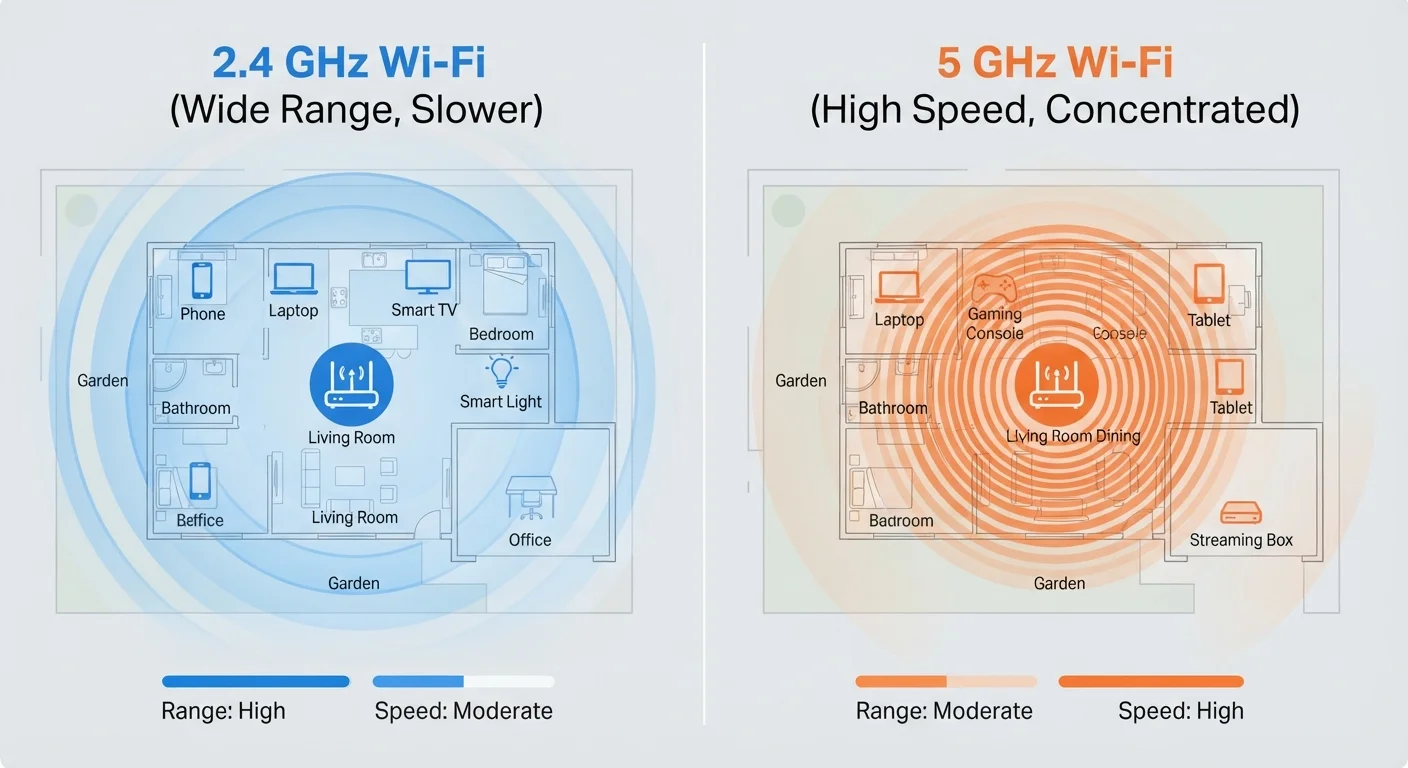
The numbers — 2.4 GHz and 5 GHz — refer to the radio frequencies your router uses to transmit wireless signals. Think of them like AM and FM radio: different frequencies, different trade-offs. Neither is universally better. They each excel in different conditions, and most modern routers broadcast both simultaneously.
A gigahertz (GHz) is simply a measure of frequency — how many times per second a radio wave oscillates. Higher frequency means shorter wavelengths, which carry more data but don't travel as far or pass through obstacles as easily. Lower frequency means longer wavelengths, which spread farther and penetrate solid objects better, but carry less data per second.
That one principle explains almost everything you need to know about when to use each band. Common myths about Wi-Fi speed often stem from ignoring this fundamental physics.
| Criterion | 2.4 GHz | 5 GHz |
|---|---|---|
| Range | Longer — covers more area | Shorter — weakens with distance |
| Wall/obstacle penetration | Better through solid materials | Absorbed more easily by walls |
| Speed (throughput) | Lower — older standard limits | Higher — supports modern Wi-Fi standards |
| Interference/congestion | More — crowded frequency band | Less — more available channels |
| Latency | Slightly higher | Lower — better for real-time use |
| IoT device compatibility | Nearly universal support | Not supported by many IoT devices |
| Best use case | Wide coverage, smart home devices | Streaming, gaming, video calls |
Where 2.4 GHz Has the Advantage
The 2.4 GHz band covers a larger area and handles physical obstacles — walls, floors, furniture — more gracefully than 5 GHz. If your router is in the living room and you're connecting a device in the back bedroom or basement, 2.4 GHz is almost certainly delivering a more stable signal.
This band is also the default for most IoT (Internet of Things) devices — smart thermostats, door sensors, light bulbs, security cameras, and similar gadgets. These devices transmit small amounts of data infrequently, so they don't need high speeds. What they do need is a reliable connection across the home, and 2.4 GHz delivers that.
The downside: because 2.4 GHz has been around longer, it's crowded. Your neighbors' routers, cordless phones, baby monitors, and even microwave ovens all compete in this frequency space. That congestion can cause interference and reduce actual speeds. The physics behind Wi-Fi signal loss helps explain why interference matters so much.
What About 6 GHz (Wi-Fi 6E)?
Newer routers with Wi-Fi 6E support a third band at 6 GHz, which offers even faster speeds and less congestion — but an even shorter range than 5 GHz. This band is only useful if both your router and your device support Wi-Fi 6E. For most households, understanding the 2.4 and 5 GHz trade-offs remains the more immediately relevant skill.
Where 5 GHz Pulls Ahead
When speed and low latency are the priority — streaming high-definition video, video conferencing, or online gaming — 5 GHz is the better choice, provided your device is reasonably close to the router. The 5 GHz band supports higher data throughput and has significantly more non-overlapping channels, meaning less congestion from neighboring networks.
Modern Wi-Fi standards like Wi-Fi 5 (802.11ac) and Wi-Fi 6 (802.11ax) are optimized for 5 GHz, offering theoretical speeds that far exceed what 2.4 GHz can achieve. In practice, the real-world advantage depends on distance, but in the same room or the next room over, the difference can be dramatic.
If your home network feels sluggish even though you're sitting near the router, switching a laptop or phone to 5 GHz is one of the first things worth trying. For a deeper look at what else might be slowing things down, see what's actually slowing down your home network.
3×
Typical speed advantage of 5 GHz over 2.4 GHz
Under equivalent conditions and proximity to the router, 5 GHz can deliver roughly three times the throughput of 2.4 GHz in real-world use.
~150 ft
Approximate indoor range of 5 GHz
The 5 GHz band's effective indoor range is generally around 150 feet under open conditions, dropping faster when walls are introduced.
13
Non-overlapping channels available on 5 GHz
Compared to just 3 non-overlapping channels on 2.4 GHz, 5 GHz's wider channel availability significantly reduces network congestion in dense areas.
Putting It Into Practice
Most dual-band routers broadcast both frequencies, sometimes under a single network name and sometimes as two separate networks (e.g., "HomeNetwork" and "HomeNetwork_5G"). If yours uses separate names, connecting the right device is straightforward. If it uses one combined name, the router automatically assigns devices — though this automatic placement isn't always optimal.
A practical approach: assign bandwidth-hungry devices (laptops, smart TVs, game consoles) to 5 GHz when they're in range, and let IoT devices and distant gadgets stay on 2.4 GHz. Many router management apps let you set device-level preferences through a simple interface.
If you're dealing with persistent dead zones regardless of which band you use, the problem may be physical layout rather than frequency choice. Mesh Wi-Fi versus a traditional router is worth exploring for larger homes. And if you're also experiencing Bluetooth dropouts near your router, understanding why wireless connections fail covers how different wireless technologies can interfere with each other.