Why These Settings Go Untouched
When you download an app or set up a new device, privacy settings are rarely front and center. Defaults are chosen by the company, not by you — and those defaults almost always lean toward collecting more data, not less. Most people click through setup screens quickly and never look back.
That's not a personal failing. Privacy menus are often buried, labeled in vague language, and easy to forget about. But a one-time audit of the settings below can meaningfully reduce how much personal data flows out of your devices — without requiring any technical expertise.
Before diving in, it helps to understand what you're actually agreeing to. Our guide on reading privacy policies without falling asleep explains what key phrases in those agreements actually mean. And if you're working through a new device for the first time, setting it up thoughtfully from the start is worth doing before habits form.
Phone System Settings
Social Media Accounts
Browser and Search Settings
Email and Cloud Accounts
Tools You'll Need for This Audit
No special software is required. You'll work directly inside the settings menus on your phone, computer, and the apps you already use. Here's what to have handy before you start.
Your smartphone (iPhone or Android)
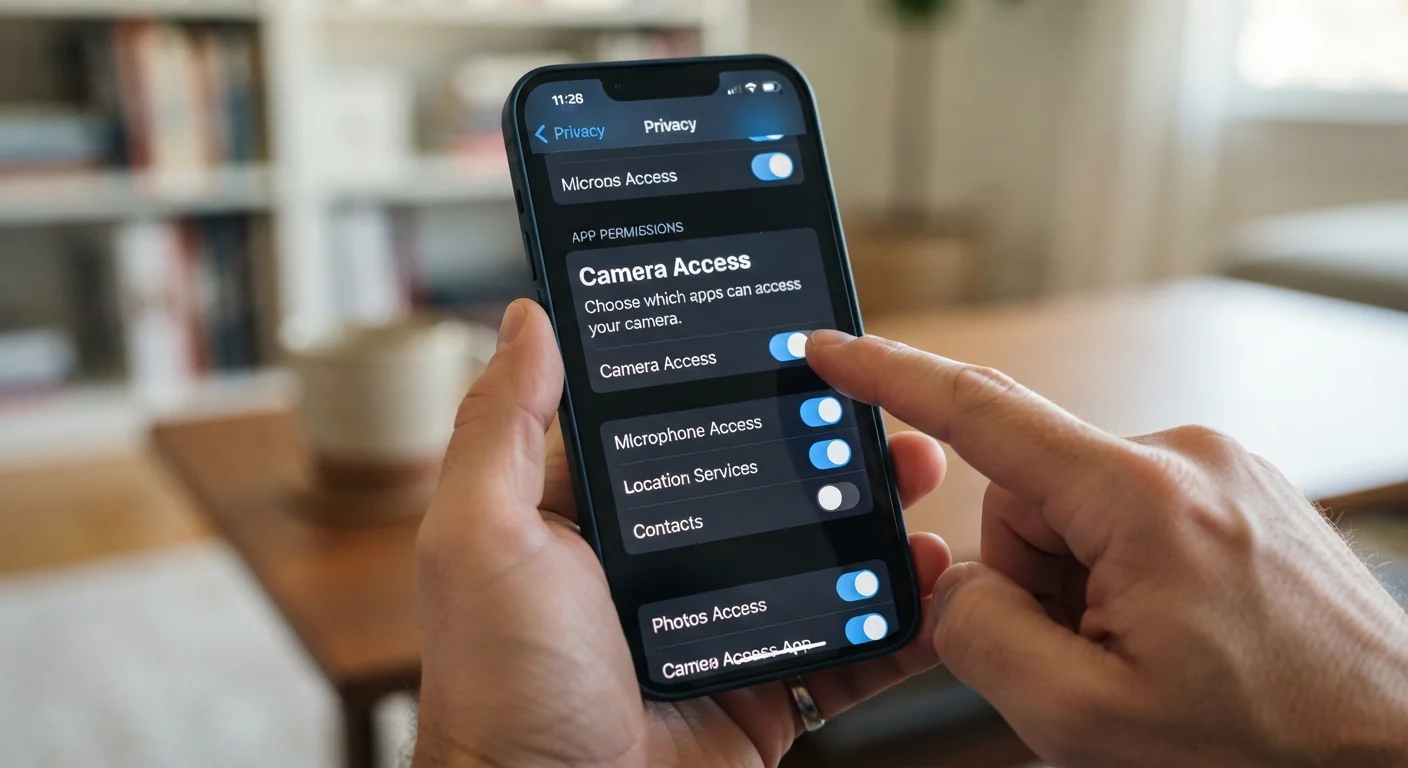
All device-level privacy settings — location, permissions, ad tracking — are adjusted directly in your phone's Settings app.
A web browser on desktop or laptop
Browser privacy settings, extension audits, and account dashboards are easier to review on a larger screen.
Login credentials for each account
You'll need to be signed in to your social media, email, and cloud accounts to access their privacy settings.
Password manager
Useful for quickly accessing account credentials as you move through multiple platforms during the audit. See our <a href="/tech-electronics/apps-software/getting-started-with-password-managers-a-plain-language-introduction">plain-language intro to password managers</a> if you're not using one yet.
What These Changes Actually Do — and Don't Do
Adjusting privacy settings reduces the amount of data an app or platform can collect, but it does not make you invisible. Apps may still collect some data for basic functionality, and advertising networks have other ways to build profiles over time.
Settings Can Reset After App Updates
Some apps quietly reset privacy preferences when they push a major update. A permission you disabled six months ago may be active again today. Make reviewing these settings a recurring habit — quarterly is a reasonable cadence for most people. Pay particular attention to apps that update frequently, such as social media and navigation tools.
Think of this checklist as reducing unnecessary exposure rather than eliminating it entirely. Pair these steps with strong account security — our primer on two-factor authentication explains why that layer matters alongside privacy settings. And since apps update frequently, revisit these menus every few months; a permission you disabled last year may have quietly reset after an update. For related context on what happens when apps change without your noticing, see our piece on why ignoring software updates carries more risk than most people realize.
If you use financial tracking apps, privacy settings carry added weight — those tools often have access to sensitive account data. Our overview of how money-tracking apps handle your data is a useful companion read.
Finally, understanding what each app permission actually grants helps you make more informed decisions beyond the items in this checklist.