Why App Permissions Matter
Every time you install an app, it may ask to access parts of your phone — your camera, your location, your contacts. These requests are called permissions, and approving them grants the app direct access to specific hardware or data on your device.
Most people tap "Allow" without reading the prompt carefully. That's understandable — the phrasing is often vague and the timing is inconvenient. But permissions are the primary mechanism by which your phone protects you, and understanding them is the first step toward using apps on your own terms.
For a deeper look at how app choices affect your data, see what the "free" label typically means in practice.
| Platforms Covered | Android and iOS (iPhone) |
| Most Sensitive Permissions | Location, Microphone, Camera, Contacts |
| Can Permissions Be Changed After Install? | Yes — anytime in device Settings |
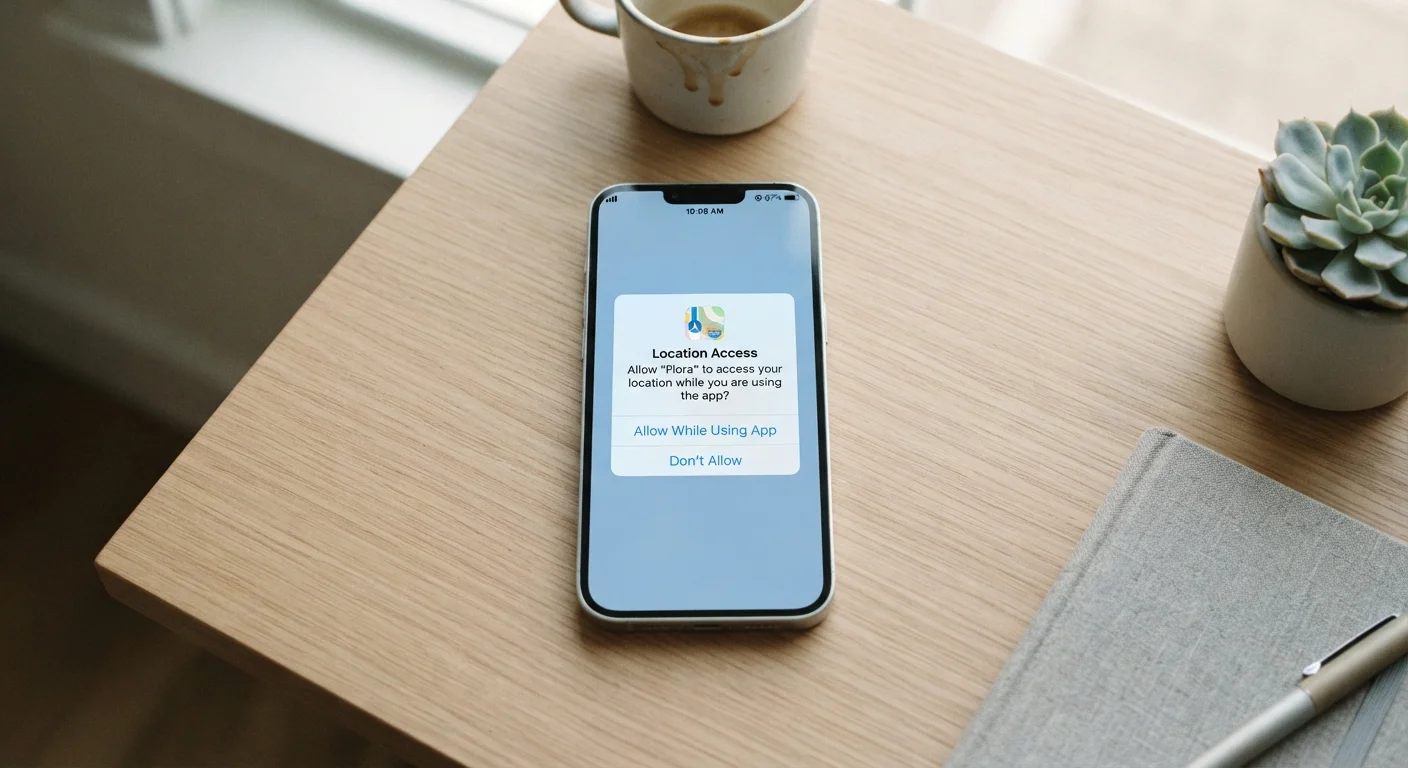
| Location Access Options | Always, Only While Using, Ask Next Time, Never |
| iOS Permission Hub | Settings → Privacy & Security |
| Android Permission Hub | Settings → Privacy → Permission Manager |
A Plain-English Guide to Common Permissions
Below is a breakdown of the permissions you'll encounter most often, what they actually access, and when granting them is reasonable versus worth reconsidering.
Permission
A controlled grant that allows an app to access a specific feature or dataset on your device. You can approve or deny each one independently.
Runtime Permission
A permission that apps must request while you're actively using them, rather than at install time. This is the standard model on modern Android and iOS.
Background Access
When an app can use a permission (like location or microphone) even when you're not actively using it. Most platforms let you limit access to 'only while using the app.'
Approximate Location
A less precise location reading — typically accurate to a neighborhood or a few miles — used when an app doesn't need your exact GPS coordinates.
Precise Location
GPS-level location data, accurate to within a few meters. Required for turn-by-turn navigation but unnecessary for most other app functions.
Permission Manager
A built-in system tool on Android and iOS that lets you view, grant, or revoke app permissions across your entire device in one place.
Location
This permission lets an app read your device's geographic coordinates, either precisely (GPS-level) or approximately (based on Wi-Fi or cell towers). Navigation and weather apps have obvious reasons to need it. A flashlight app or a simple game almost certainly doesn't.
Camera
Camera access lets the app open your phone's camera lens and capture photos or video. Video calling, QR code scanning, and document scanning all require this. Be cautious if a notes or utility app requests it without a clear explanation.
Microphone
This allows the app to record audio through your phone's mic. Voice assistants, transcription tools, and video calling apps need it. Consider whether you want it enabled continuously in the background versus only while using the app.
Contacts
The app can read your entire address book — names, phone numbers, email addresses, and any custom fields. Messaging and calling apps have legitimate reasons; some social apps use it to "find friends," but that means uploading your contacts to their servers.
Storage / Files
On Android, this permission lets apps read or write files on your device — photos, documents, downloaded files. On iOS, apps use a more granular file-picker model. Granting this to a media editor makes sense; granting it to an app with no file-related features does not.
Notifications
This doesn't access data, but it lets the app send you alerts at any time. It's worth reviewing which apps you've allowed to interrupt you — notification overload is a real drain on attention and battery.
Bluetooth & Nearby Devices
Bluetooth permission allows the app to connect with nearby devices like speakers, headphones, or fitness trackers. Newer Android versions also use this permission for location inference, even without enabling location directly — something worth knowing.
Body Sensors / Health Data
Some apps can request access to health metrics from your phone's sensors or a connected device. Fitness and wellness apps often have legitimate reasons for this. Understand that this can include heart rate, step counts, and sleep data. For a related look at sensor data, see what your smartwatch sensors are quietly measuring.
How to Review and Adjust Permissions
Both Android and iOS let you review and change app permissions at any time — you don't have to decide at the moment of installation.
- On iPhone: Go to Settings → Privacy & Security, then tap any category (Camera, Location, Contacts, etc.) to see which apps have access and toggle it on or off.
- On Android: Go to Settings → Privacy → Permission manager to browse by permission type, or go to Settings → Apps, select any app, then tap Permissions.
A useful habit: after installing a new app, give it a few days of normal use, then revisit its permissions. You'll often find requests that were granted automatically during setup and never actually needed.
"Only While Using the App" Is Often the Safest Choice
For location, microphone, and camera, most phones offer a middle-ground option: access only while the app is open on screen. This is often the right call for apps you use occasionally. It limits exposure without breaking the app's core functionality. Reserve 'Always' access for apps like navigation tools that genuinely need it in the background.
For broader privacy controls beyond permissions, digital privacy settings most people never touch is worth a read.