Why First Setup Matters More Than You Think
Unboxing a new phone, tablet, or laptop comes with a temptation to skip straight to the fun part. But the decisions made in the first setup session — the accounts you link, the permissions you grant, the settings you leave unchanged — shape how your device performs and how well your data is protected for the entire time you own it.
Think of it like moving into a new home. You wouldn't wait months to put locks on the doors or figure out where the circuit breaker is. A little intentional setup now prevents a lot of frustration later. The good news: none of this requires technical expertise, just a deliberate approach.
Two-factor authentication (2FA)
A security method that requires two separate forms of verification to log in — typically your password plus a code sent to a trusted device or app.
Bloatware
Pre-installed apps that come on a device from the manufacturer or carrier that most users don't need and can't easily remove.
Permissions
Controls that determine what device features — like your camera, microphone, or location — individual apps are allowed to access.
WPA2 / WPA3
Security protocols that encrypt data on a Wi-Fi network. WPA3 is newer and stronger; WPA2 is still widely used and considered secure for home networks.
Software patch
A software update that fixes specific bugs or security vulnerabilities, often released between major version updates.
Security and Account Basics
Before you download a single app or sync any data, lock down access to the device itself. Set a strong screen lock — a PIN of six digits or longer, a passphrase, or biometric authentication like a fingerprint. Avoid simple patterns or four-digit PINs if your device allows something stronger.
Next, secure the primary account tied to the device — your Apple ID, Google account, or Microsoft account. Use a password that is both long and unique to this account; a password manager can generate and store it for you. Then enable two-factor authentication (2FA) on that account immediately. This adds a second verification step — typically a code sent to another device or app — so that a stolen password alone isn't enough to break in.
Use a Password Manager From Day One
A password manager stores and auto-fills complex, unique passwords for every account — so you only need to remember one master password. Setting one up at the very start of a new device's life makes it far easier to maintain strong credentials across every app and service you add. Most major platforms have built-in options, or you can use a standalone app.
Privacy Settings Worth Adjusting Right Away
New devices arrive with default settings that are often optimized for convenience rather than privacy. Location services, ad personalization, and diagnostic data sharing are commonly enabled by default. Take ten minutes to review these before you start using the device in earnest.
Go into Settings and look for sections labeled Privacy, Location, or Permissions. Disable location access for any app that doesn't clearly need it. Turn off ad personalization if you'd prefer your usage data not be used to build an advertising profile. Review what diagnostic information the device sends back to the manufacturer and adjust to your comfort level.
For a deeper look at the overlooked controls worth changing, see our guide to digital privacy settings most people never touch.
Default Settings Favor Data Sharing
Manufacturers and app developers typically set defaults to collect more data, not less. If you skip the privacy review, you may unknowingly share location history, usage patterns, and diagnostics with multiple companies. Reviewing these settings once during setup takes far less time than trying to undo data sharing retroactively.
Software Updates and Storage Housekeeping
Even a device that shipped recently may have software updates waiting. Manufacturers release patches between production and sale, so checking for updates on day one is genuinely worthwhile. Navigate to Settings, then look for a section called Software Update, System Update, or similar — the label varies by platform. Install whatever is available before logging into sensitive accounts.
Also take stock of what comes pre-installed. Many devices ship with apps you'll never use — sometimes called bloatware. Uninstalling or disabling them frees storage and reduces the number of apps running in the background. Keeping a reasonable buffer of free storage — generally around 10–20% of the device's total capacity — helps the system run smoothly going forward.
For ongoing strategies, getting more life out of a device you already own covers storage management, software habits, and more.
Connectivity and Network Setup
Connect your new device to your home Wi-Fi using the most secure available option — on modern routers, that's typically WPA3 or WPA2. Avoid connecting to public or open networks during initial setup, since credentials and account data passed over those networks can be more easily intercepted.
If you have guests who regularly use your home network, now is a smart time to set up a separate guest Wi-Fi network. This keeps visitors online without giving them access to your newly configured devices. Setting up a guest Wi-Fi network at home walks through that process step by step.
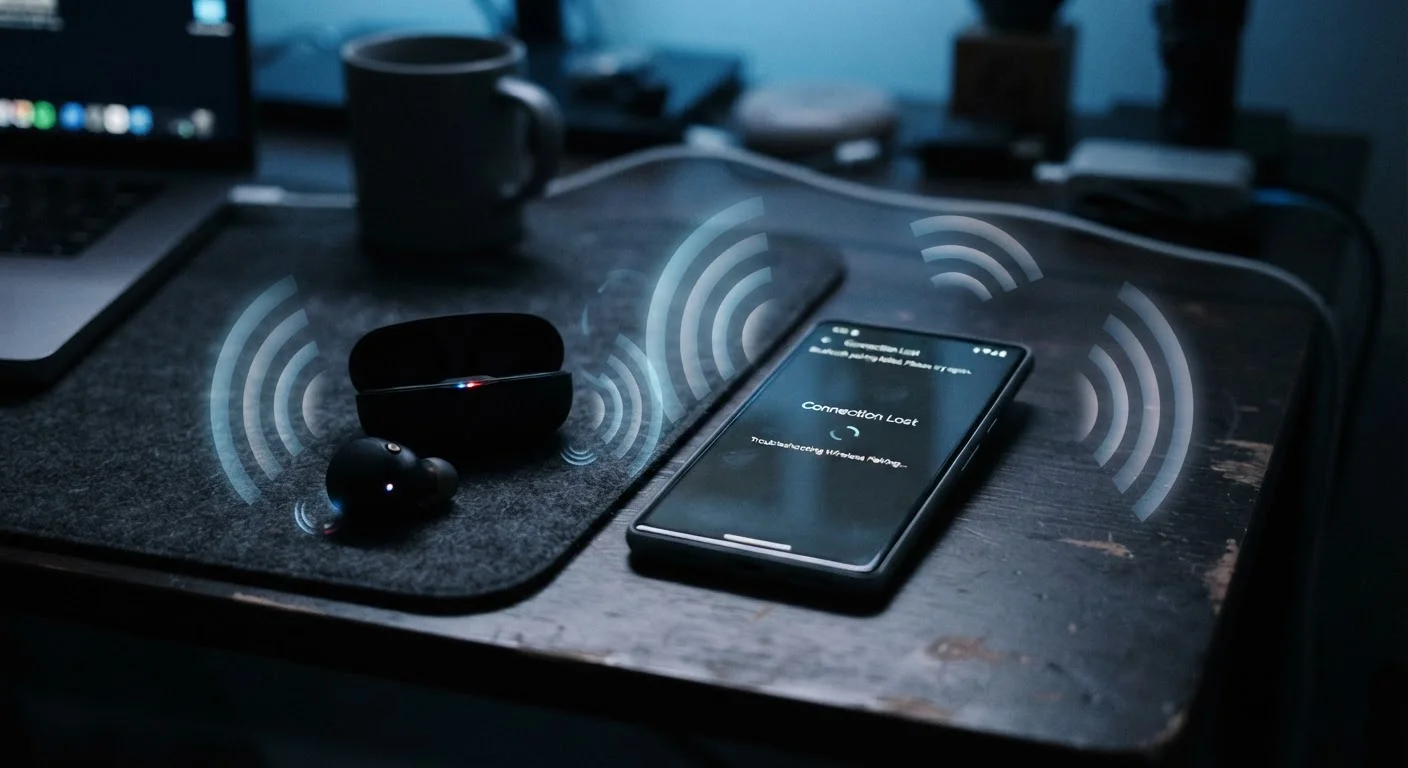
Also review Bluetooth and AirDrop (or the equivalent file-sharing feature on your platform). Set these to discoverable only when you need them, not permanently on — this reduces exposure to connection-based attacks in public spaces.
Building Habits That Keep Your Device Running Well
Setup isn't a one-time event — it's the foundation for a set of ongoing habits. Keeping software updated, reviewing app permissions periodically, and managing storage all extend how long your device runs well. Understanding why phones slow down over time can help you recognize early warning signs and address them before performance degrades significantly.
Approach your new device as a long-term tool rather than something to be replaced at the first sign of slowdown. Most performance issues that develop over time trace back to habits — or skipped steps — from the early days of ownership. A careful first setup is the single best investment you can make in a device that will keep working the way you expect it to.