Why Wi-Fi Signals Fade: The Basic Physics
Wi-Fi is radio transmission. Your router broadcasts a signal on a specific frequency — most commonly 2.4 GHz or 5 GHz — and your devices receive it. Like all radio waves, that signal spreads outward in every direction, and its strength decreases the farther it travels from the source. This is called free-space path loss, and it's unavoidable.
Here's a useful way to think about it: imagine the signal as light from a bare bulb. The farther you walk from the bulb, the dimmer it looks — not because anything blocked it, but because the same amount of light is now spread across a larger area. Wi-Fi energy behaves the same way. Double the distance and you roughly quarter the signal power.
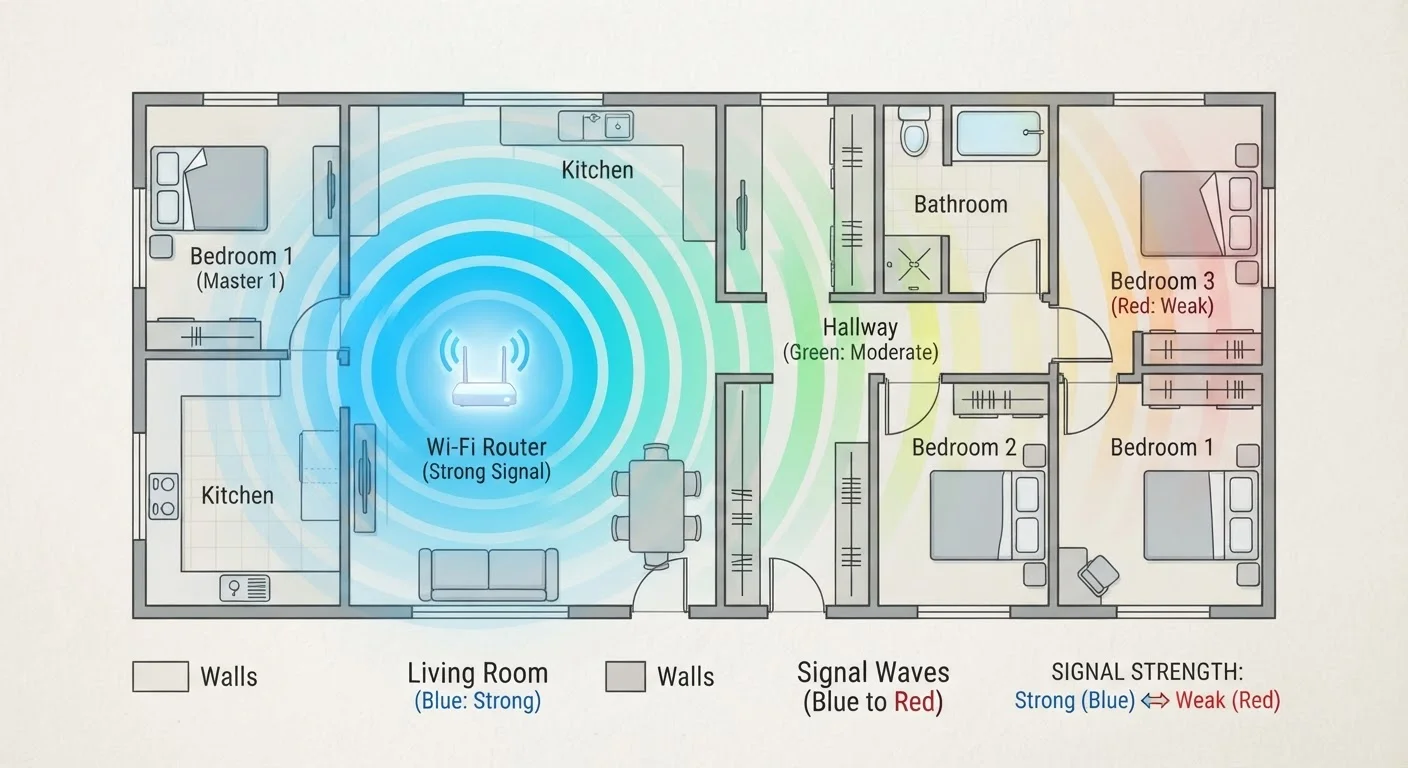
On top of that, every physical object the signal passes through absorbs some of that energy. This is where most dead zones actually come from — not raw distance, but the accumulated cost of traveling through walls, floors, ceilings, and furniture.
~3 dB
Signal loss per standard interior drywall
Radio frequency engineering guidelines consistently cite roughly 3 dB of loss per standard interior partition — meaning signal power roughly halves with each wall crossed.
10–15 dB
Signal loss through solid concrete
Concrete walls absorb substantially more radio energy than drywall, with industry estimates ranging from 10 to 15 dB per wall — potentially reducing usable signal to near zero in one pass.
4x
Signal power drop when distance doubles
The inverse square law means doubling the distance between router and device reduces signal power to roughly one-quarter of its original strength, independent of any obstacles.
How Different Materials Affect Signal Strength
Not all obstacles are equal. Building materials vary significantly in how much signal they absorb or reflect. Understanding this helps you predict where weak spots will form.
- Drywall and wood: Relatively Wi-Fi-friendly. A standard interior wall made of drywall causes modest signal loss — maybe 3–5 dB per wall.
- Brick and concrete: Much denser, absorbing significantly more signal. A solid concrete wall can reduce signal strength by 10–15 dB or more — enough to effectively eliminate service on the other side.
- Metal: The most disruptive material. Metal reflects and scatters radio waves rather than letting them pass. Appliances, HVAC ducts, metal filing cabinets, and even some insulation types with metallic backing can create hard dead zones nearby.
- Water: Often overlooked, but water absorbs 2.4 GHz signal effectively. Fish tanks, water heaters, and even the human body attenuate wireless signals.
- Glass: Usually transparent to radio waves, though low-emissivity (Low-E) coatings on modern windows can partially block signal.
This is why the back bedroom or basement corner is so often the dead zone. It's typically farthest from the router and separated by the most material layers.
Interference: When the Problem Isn't Distance
Sometimes a room has adequate signal strength but still performs poorly. The culprit is often interference — competing radio signals on the same or adjacent frequencies that cause errors and retransmissions, which your devices experience as slowness or dropped connections.
Common sources of interference in a typical home include:
- Neighboring Wi-Fi networks broadcasting on the same channel
- Microwave ovens (2.4 GHz band only)
- Baby monitors and older cordless phones
- Bluetooth devices operating at close range
Channel congestion is particularly common in apartments and dense neighborhoods. If your router and several neighbors' routers all use the same Wi-Fi channel, they're essentially talking over each other. Most modern routers can automatically select the least-congested channel, but older or cheaper models may not do this well.
For a deeper look at how frequency choice affects range and congestion, see our guide to 2.4 GHz vs. 5 GHz.
Interference Can Mimic a Dead Zone
A device showing low signal bars is likely suffering from path loss — it's simply too far away or blocked by materials. But a device showing strong bars while still loading pages slowly or dropping video calls is more likely experiencing interference or congestion. The two problems look similar from the user's perspective but call for different fixes.
Router Placement and Why It Creates Uneven Coverage
Most routers are placed wherever the ISP technician installed the modem — often near the front door, in a utility closet, or at one end of the home. This is rarely the best position for even coverage.
A router positioned at the edge of your home sends half its signal outward through exterior walls into the street. Centrally located routers distribute signal more evenly, reducing the maximum distance any room sits from the source. Elevation matters too: a router on the floor or inside a cabinet loses significant signal to nearby surfaces. Placing it at mid-wall height in an open area makes a measurable difference.
Router placement is also the reason why dead zones often move or change seasonally — a new piece of furniture, a rearranged room, or even a new appliance between you and the router can tip a marginal area into a dead zone. If your signal recently got worse without any obvious change, check whether anything new has appeared in the signal path.
The Closet and Corner Rule
If your router is currently inside a cabinet, closet, or entertainment center, moving it to an open shelf will almost always improve coverage. Enclosed spaces force the signal to pass through additional wood or metal before it ever reaches open air. Think of it as removing a layer of obstacle before the signal even starts its journey.
If physical obstacles can't be removed, our room-by-room troubleshooting walkthrough can help you systematically identify and address problem areas.
Solving Dead Zones: Matching the Fix to the Cause
Once you understand why a dead zone exists, the solution usually becomes clearer. A dead zone caused by a poorly placed router is fixed differently from one caused by a concrete wall or channel interference.
- Reposition the router first. This costs nothing and often produces the biggest improvement.
- Switch Wi-Fi bands strategically. If you have a dual-band router, connecting close-range devices to the 5 GHz band and distant devices to 2.4 GHz can reduce congestion and improve coverage for both.
- Use a mesh network or range extender for coverage gaps that repositioning can't fix. Mesh systems are generally more seamless for multi-room coverage, while extenders work for isolated gaps on a tighter budget.
- Consider a wired connection for fixed devices. Gaming consoles, smart TVs, and desktop computers that sit in dead zones are strong candidates for an Ethernet cable — which delivers consistent speeds that wireless can't match. See when a wired connection makes more sense.
If none of the above resolves persistent slowness, the issue may not be signal at all — it may be bandwidth consumption across your network. Learn which devices quietly consume the most bandwidth and how to manage them.