Why Wi-Fi Myths Persist — And Why They Matter
Wi-Fi is invisible, complex under the hood, and central to daily life — a combination that makes it fertile ground for misconceptions. When something goes wrong, people reach for the nearest explanation that sounds plausible. Unfortunately, acting on a wrong assumption can lead to wasted money, unnecessary frustration, and a problem that never actually gets fixed.
The myths below are among the most common ones that lead everyday users astray. Each one contains a grain of plausibility, which is exactly what makes them stick. Understanding what's actually happening under the hood will help you troubleshoot smarter and avoid chasing fixes that won't work.
Myth
More bars on my device means I'm getting faster internet speeds.
Fact
Signal strength and internet speed are related but not the same thing. Strong bars indicate a good connection to your router — not the speed of data flowing through it.
The bars (or Wi-Fi indicator) on your phone or laptop measure the signal strength between your device and the router. A strong signal means your device is communicating reliably with the router — but that says nothing about how fast your internet service is, how congested your network is, or whether the router itself is overwhelmed. You could have full bars on a 25 Mbps plan and still buffer constantly during peak hours.
Think of it like having a wide, clear road to the on-ramp of a highway that's gridlocked. The road quality is fine — traffic is the problem. Learn more about what speed numbers actually represent in our piece on what your internet speed numbers actually mean.
Myth
Placing the router in a corner or against a wall is fine — it just needs to be plugged in.
Fact
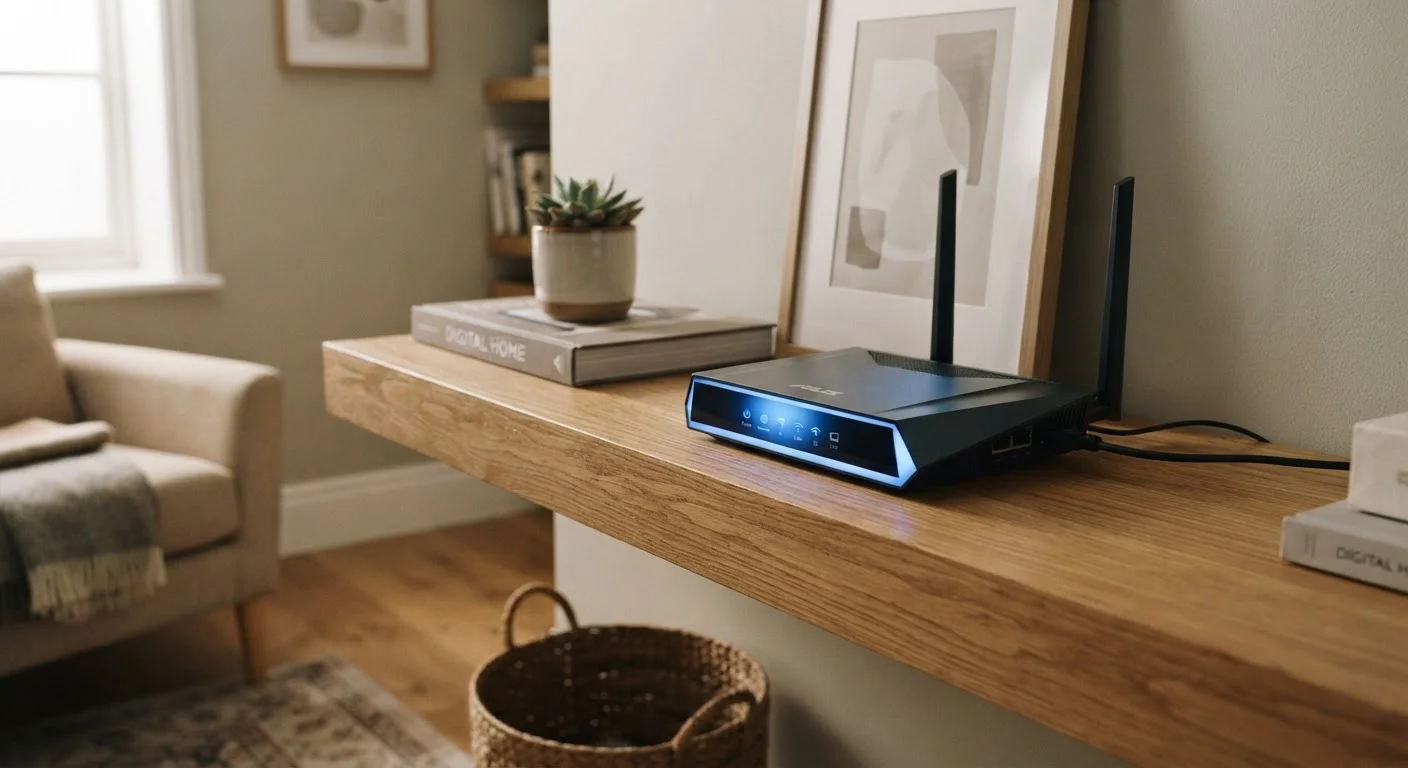
Router placement meaningfully affects coverage. Tucking a router into a corner or inside a cabinet limits its signal reach significantly.
Wi-Fi signals radiate outward in roughly all directions from the router's antennas. When you push the router into a corner, a large portion of that signal goes into walls and the outside of your home — wasted coverage you're paying for. Walls, floors, large appliances, and even water-filled fish tanks absorb and deflect radio signals.
A more central, elevated location — free from obstructions — typically provides more even coverage throughout the home. That said, the "ideal" spot varies by home layout, construction materials, and where devices are most used. For a deeper look, see our article on router placement and configuration principles.
Myth
The 5 GHz band is always better and faster than 2.4 GHz, so I should always use it.
Fact
The 5 GHz band offers higher speeds over short distances, but 2.4 GHz penetrates walls better and reaches farther.
These two bands represent a genuine trade-off. The 5 GHz band transmits more data per second and is less prone to interference from neighboring networks and household devices — but its signal degrades more quickly through walls and distance. The 2.4 GHz band travels farther and passes through obstacles more easily, at the cost of lower top speeds and more potential interference from other devices like microwaves and cordless phones.
For a device sitting next to the router — say, a gaming console or streaming stick — 5 GHz is usually the smarter choice. For a smart thermostat or security camera at the far end of the house, 2.4 GHz may maintain a more stable connection. Our breakdown on choosing the right Wi-Fi band for each room goes into more detail.
Myth
Restarting the router is just a tech support cliché — it doesn't really do anything.
Fact
Restarting a router clears temporary memory, ends stalled processes, and refreshes network assignments — and it genuinely resolves many common issues.
Routers run a small operating system, and like any computer, they can accumulate memory errors, stalled connections, and outdated IP address leases over time. A restart clears this temporary state and forces the device to reinitialize cleanly. It's not folklore — it's basic computing.
That said, restarting is not a cure-all. If your problem stems from a bad cable, an outage from your internet service provider, or a device-specific issue, a router restart won't fix it. Knowing when to restart and when to dig deeper can save time. See our article on why restarting your router actually fixes things for a full explanation.
Myth
If I pay for faster internet, everything on my network will automatically be faster.
Fact
Your plan speed is only one part of the equation. Older routers, outdated device hardware, and network congestion all cap real-world performance.
Upgrading your internet plan can help — but only if the plan is actually the bottleneck. If your router is several years old, it may not be capable of passing through the full speed your plan provides. Similarly, older laptops or phones may have Wi-Fi chips that can't take advantage of faster connections. And if many devices are active at once, they share that bandwidth regardless of the plan size.
Before upgrading your plan, run a speed test via a wired ethernet connection directly to your modem. If wired speeds match what you're paying for but Wi-Fi speeds lag, the issue is inside your home network — not your plan. Devices and habits that quietly consume bandwidth are covered in our guide to bandwidth hogs on your home network.
Myth
A single powerful router will cover any home if it's strong enough.
Fact
Large or multi-story homes often have physical barriers that no single router — regardless of power — can fully overcome.
Marketing materials for routers often cite impressive coverage ranges measured in open air with no obstructions. Real homes have concrete walls, metal plumbing, thick floors, and multiple rooms that all attenuate (weaken) signals. In practice, a single router in a large or oddly shaped home will almost always leave dead zones.
Mesh Wi-Fi systems — which use multiple nodes placed around the home — address this by extending coverage more evenly. They aren't necessary for small apartments, but for larger spaces they can be a practical solution. Our comparison of mesh Wi-Fi vs. traditional routers walks through when each approach makes sense.
What to Do When Your Wi-Fi Is Actually Slow
Once you've cleared away the myths, a more practical picture emerges. Start with a wired speed test to isolate whether the problem is your internet plan or your home network. Check whether specific devices or locations are affected — that points to coverage issues rather than plan speed. Look at how many devices are active simultaneously, since a crowded network shares bandwidth across all of them.
Advertised Speed Is Not Guaranteed Speed
Your internet plan's advertised speed is a theoretical maximum under ideal conditions. Real-world speeds are affected by network congestion, router hardware, device capabilities, and the number of active users sharing your connection. Always test your actual speeds using a wired connection to get the most accurate baseline reading.
If dead zones are the issue, consider whether your router's placement can be improved before investing in new hardware. Physical obstacles — thick walls, floors, metal objects — are often the real culprit, not router quality. Our walkthrough on Wi-Fi drops and dead zones, room by room, and our explainer on the physics of Wi-Fi signal loss, are good next steps once you know where the problem lives.
Upgrading Gear Won't Always Fix Slow Speeds
Many people spend money on a newer, faster router only to see little improvement. If your internet service plan, in-home wiring, or modem is the limiting factor, new router hardware won't solve the problem. Before upgrading, diagnose where the bottleneck actually is. Our guide on common upgrade pitfalls explains what to check first.