Why Extending Device Life Is Worth the Effort
Replacing a phone, tablet, or laptop is expensive — and often unnecessary. Many devices that feel sluggish or unreliable aren't worn out; they're simply overloaded, overheated, or running software that hasn't been maintained. A modest investment of time and attention can recover significant performance and push a device's useful life by a year or more.
Keeping devices running longer also has financial benefits worth considering. Delaying a $700–$1,000 device purchase by even 18 months adds up — see our everyday money tips for how small habit changes compound over time. The checklist below covers the highest-impact actions you can take across software, storage, battery, and physical care.
Software & Security
Storage Management
Battery Health
Physical Maintenance
Tools You'll Want on Hand
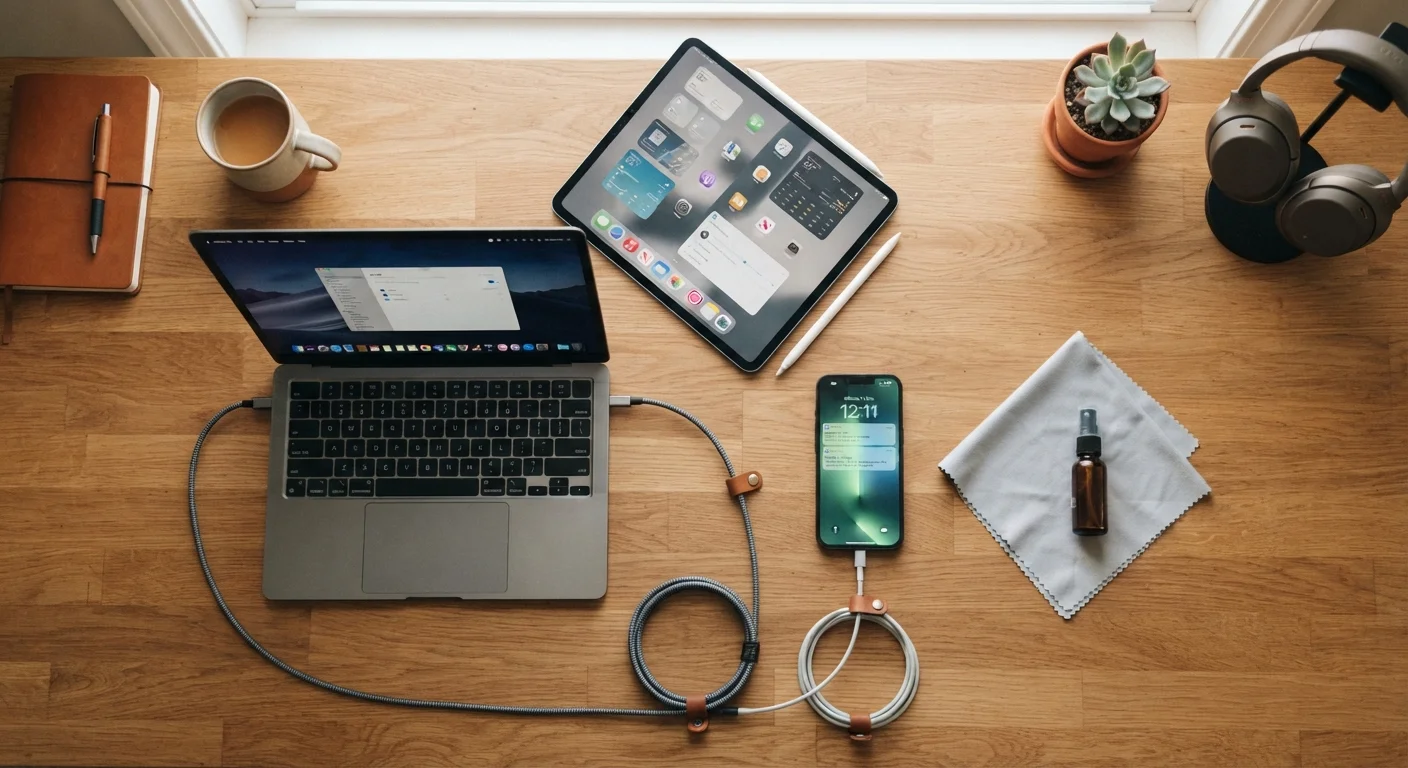
Most of these tasks require nothing beyond what you already have, but a few inexpensive supplies make the physical maintenance steps much easier to do properly.
Compressed air canister
Blasts dust out of vents, keyboard gaps, and ports without touching sensitive internal components.
Microfiber cloth
Safely cleans screens and surfaces without scratching or leaving lint behind.
Soft-bristled brush (small)
Clears debris from charging ports and headphone jacks without damaging connectors.
Device's built-in storage analyzer
Shows a breakdown of what is consuming storage space so you can prioritize what to delete.
External hard drive or USB drive
Provides a destination to offload large photo and video files from the device's internal storage.
Common Mistakes That Shorten Device Lifespan
Even well-intentioned users often fall into habits that silently degrade their devices over time. Understanding what not to do is just as important as knowing what to do.
Avoid Charging Habits That Stress the Battery
Leaving a device plugged in at 100% for extended periods — such as overnight, every night — generates heat that degrades lithium battery cells over time. Similarly, frequently letting the battery reach 0% before charging adds stress to the charge cycle. Neither habit causes immediate failure, but both measurably shorten the battery's total lifespan.
Don't Skip Ventilation Clearance on Laptops
Using a laptop on soft surfaces like beds or couches blocks the bottom vents, trapping heat. Sustained high temperatures cause processors to throttle (slow themselves down to cool off) and can permanently degrade battery cells and other components. A hard, flat surface — or a laptop stand — makes a real difference during extended use.
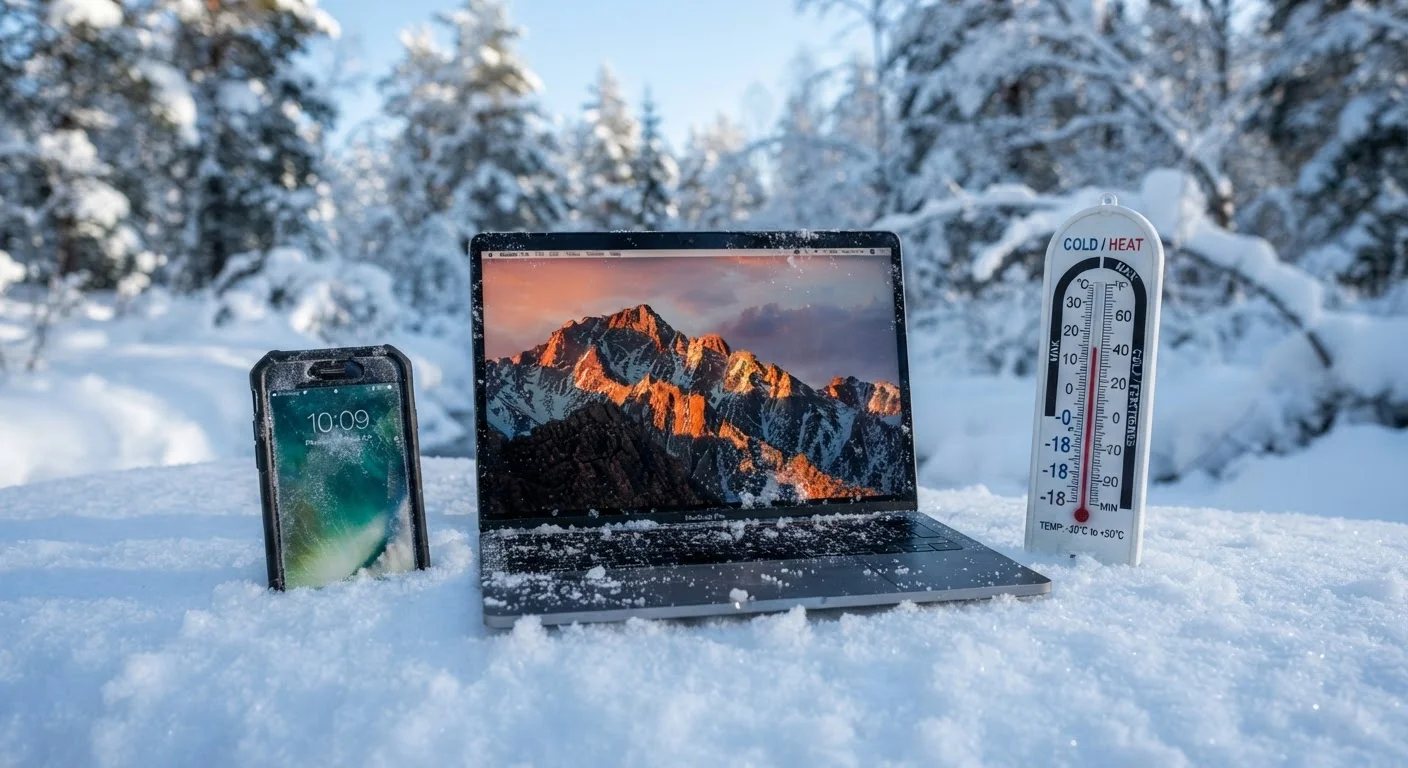
If your device runs hot regularly, check out our guide on caring for your devices in hot and cold extremes — heat is one of the leading causes of premature battery and hardware failure. And if your software is aging out of support, our article on what end-of-life software really means explains when older OS versions become a real risk.
Outdated Software Is a Security Risk, Not Just Slow
Running an operating system or browser that no longer receives security updates leaves your device exposed to known vulnerabilities that manufacturers have already patched in newer versions. This is especially important on devices used for banking, email, or storing sensitive documents. If your device can no longer receive OS updates, factor that security gap into your decision about whether to continue using it for sensitive tasks.
Finally, storage management is one of the most overlooked performance levers. Our deep-dive on what's actually taking up space on your phone can help you read your storage breakdown with confidence. For keeping your apps and files organized once you've cleared the clutter, see our practical framework for organizing your digital life.