How Internet Actually Gets Into Your Home
Before a single web page loads on your phone, data has traveled a long way. Your ISP — the company you pay for internet access — maintains a network of cables, fiber lines, or wireless towers that carry internet traffic across cities and neighborhoods. A physical line from that network runs to your home, typically through a utility box on the street or a connection point on your building.
That line arrives at a device in your home — usually near where the cable enters the wall — and that is where your private home network begins. The type of connection your ISP uses — whether cable, fiber optic, DSL, or satellite — determines how that signal arrives and how fast it can realistically be.
ISP
Short for Internet Service Provider — the company that sells you internet access and maintains the physical infrastructure connecting your home to the broader internet.
Modem
A device that translates the signal from your ISP's network into data your home devices can understand. It is the entry point for internet in your home.
Router
A device that distributes your internet connection to multiple devices in your home, both through cables and wirelessly via Wi-Fi.
Bandwidth
The maximum amount of data that can pass through your internet connection at one time. All devices on your network share this pool.
Gateway
A single device that combines the functions of a modem and router. Many ISPs provide one as a rental to simplify home setup.
Ethernet
A type of physical cable used to connect devices directly to a router or modem for a wired, typically faster and more reliable internet connection.
The Hardware in the Middle: Modems, Routers, and Gateways
Two devices sit between that incoming line and your laptop or phone: a modem and a router. The modem's job is translation — it converts the signal coming from your ISP into standard digital data your home devices can use. The router's job is distribution — it takes that data and shares it across all your devices, both wired and wirelessly.
Many ISPs supply a single box called a gateway that combines both functions. It simplifies setup but can be harder to upgrade independently. For a deeper look at how each device works, see our guide to what a modem, router, and gateway each handle.
From Router to Device: Wired vs. Wireless
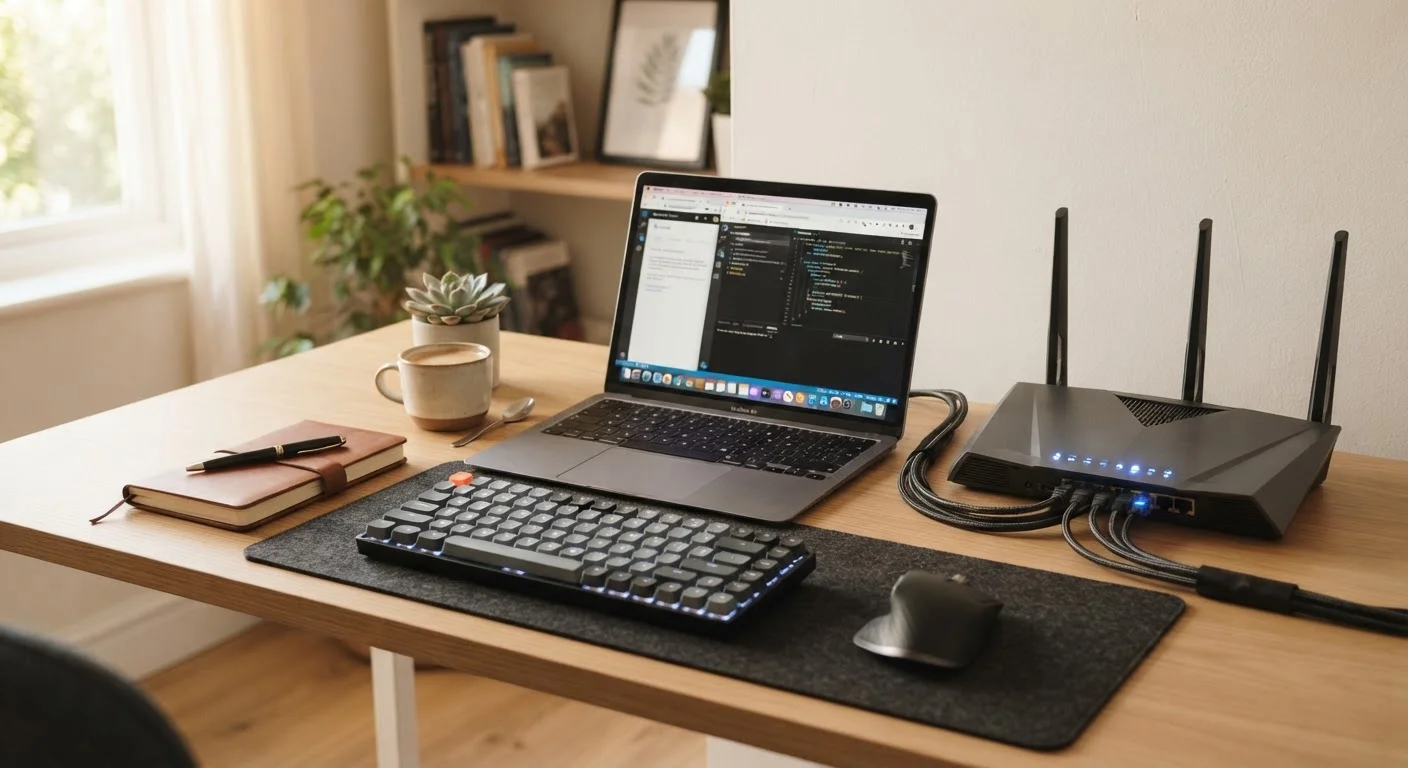
Once your router is running, your devices connect to it in one of two ways: through an Ethernet cable (wired) or through Wi-Fi (wireless). A wired connection plugs directly into a port on your router and delivers a consistent, fast signal with virtually no interference. It is well-suited for devices that stay in one spot, like a desktop computer or a smart TV.
Wi-Fi broadcasts your connection as a radio signal throughout your home. It is convenient — no cables needed — but the signal weakens with distance and is affected by walls, appliances, and neighboring networks. Most laptops, phones, and tablets connect this way. If you notice speed drops on a specific device, trying a wired connection is one of the fastest ways to determine whether the problem is Wi-Fi-related or something deeper. Learn more about how everyday devices work when you are ready to go further.
Place Your Router in a Central Location
Wi-Fi signal radiates outward in all directions from the router, so placing it in the center of your home — rather than near the wall where the cable enters — helps distribute coverage more evenly. Avoid tucking it inside a cabinet or behind a television, as physical barriers reduce signal strength significantly.
Speed, Bandwidth, and What Slows You Down
Bandwidth is the amount of data that can travel through your connection at one time — think of it like lanes on a highway. Your ISP sells you a certain amount of bandwidth, but that total is shared across every device actively using the network. When several people stream video, video-call, or download files simultaneously, each device gets a smaller share.
Common silent bandwidth consumers include security cameras, smart TVs that auto-update overnight, and phones that sync backups in the background. Understanding which devices and habits quietly eat your bandwidth can explain slowdowns that seem random. If your current plan consistently underperforms even for everyday tasks, it may be worth evaluating your usage before assuming your hardware is at fault.
Quick Fixes: What to Try Before Calling Support
Most home internet problems trace back to a handful of common causes, and many resolve with a simple restart. Here is a reliable sequence to follow:
- Restart the modem first. Unplug it from power, wait 30 seconds, plug it back in, and let it fully reconnect (usually 1–2 minutes).
- Restart the router second. Once the modem's lights are stable, unplug the router, wait 30 seconds, and plug it back in.
- Check a second device. If one device has no internet but another does, the problem is likely with that specific device, not your network.
- Check your ISP's outage map. Most ISPs have a status page or app where you can confirm whether there is a wider outage in your area.
If problems persist after these steps, check the physical cable running from the wall to your modem — a loose or damaged cable is a surprisingly common culprit. When you are ready to think about longer-term improvements, our guide on home network upgrade pitfalls can help you avoid common missteps.
Your ISP Owns the Line to Your Home
The physical connection running from the street or utility box to your home belongs to and is maintained by your ISP. If the problem is on that line — rather than inside your home network — only the ISP can repair it. When restarting your equipment does not resolve the issue, contacting your ISP to check the line is the right next step.