Why Storage Use Is Rarely What It Looks Like
The 'Storage Full' notification is one of the most common — and most confusing — alerts a smartphone user encounters. You delete a few apps, and barely anything changes. You clear some photos, and somehow the device still feels stuffed. That frustration usually comes down to one thing: most people are reading their storage breakdown without knowing what the categories actually mean.
Phone storage is divided into layers. Some are entirely in your hands. Others belong to the operating system and can't be meaningfully reduced. Knowing the difference is the first step to taking real, effective action — instead of deleting things at random and wondering why it didn't help.
Storage overload is also directly tied to how well your phone performs over time. As our explainer on phone slowdowns covers, a nearly full device can noticeably affect speed and responsiveness, not just available space.
What you will need
How to Read Your Storage Breakdown — Step by Step
The steps below apply to both major smartphone platforms. Where the process differs between iOS and Android, both paths are covered. You don't need any third-party app to complete this — everything described is built into your phone.
Phone Settings App
The built-in Settings app on both iOS and Android provides a native storage breakdown — no third-party app required.
Files App (Google Files or Apple Files)
First-party file manager apps let you browse downloaded content, large files, and duplicates for manual cleanup.
Open your phone's storage settings
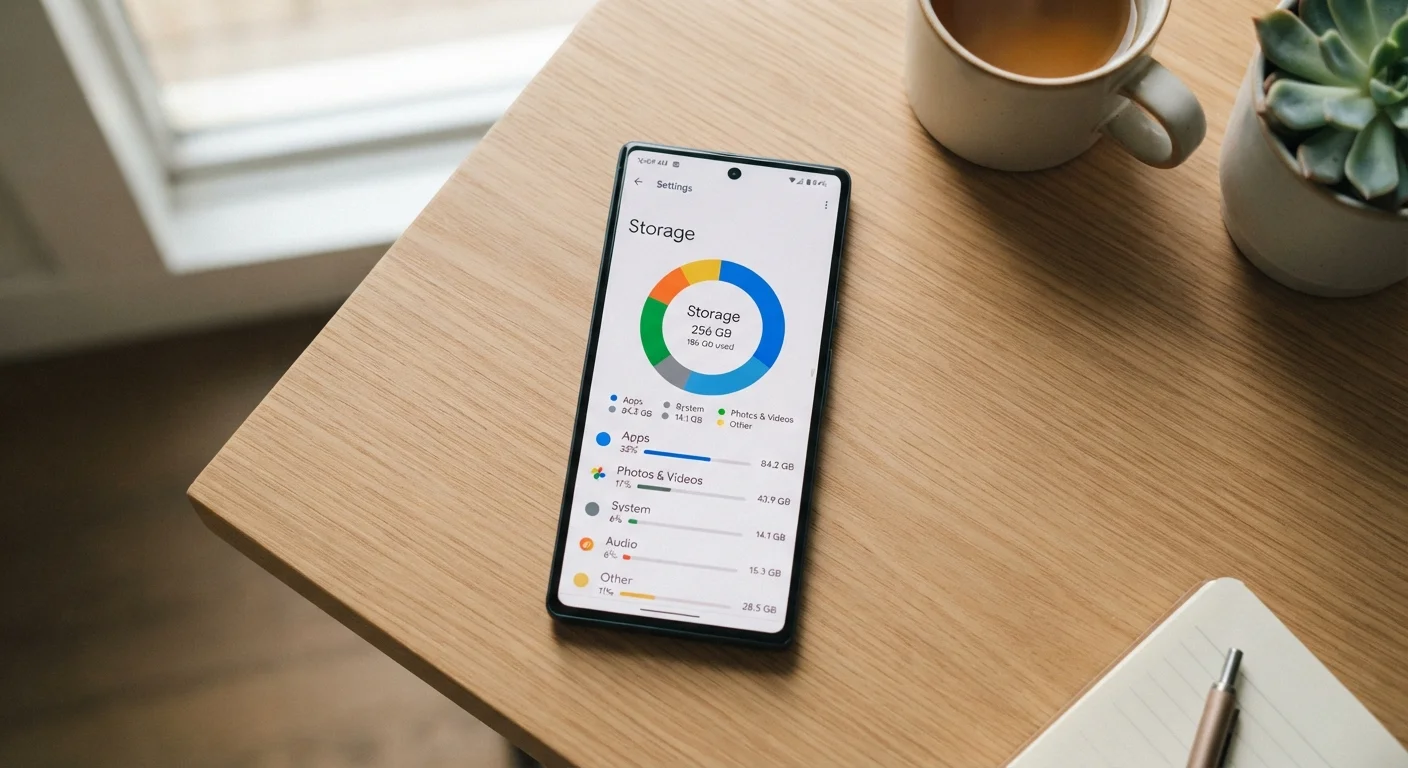
On Android: Go to Settings → Storage. The exact path varies slightly by manufacturer, but Storage is almost always a top-level option.
On iPhone: Go to Settings → General → iPhone Storage.
Both screens will display a visual bar or chart showing total used space versus available space, followed by a breakdown by category or app.
Read the category breakdown
Both platforms group storage into labeled categories. Here's what each one actually means:
- Apps / Applications: The installed app files themselves — the base program size. This does not include the data those apps have accumulated.
- App Data / Documents & Data: Files created or downloaded by apps — think saved game progress, offline maps, downloaded podcasts, or email attachments. This can grow very large over time without you noticing.
- Photos & Videos: Everything in your camera roll and any media synced from other apps. This is usually the largest user-controlled category.
- System / iOS: The operating system itself. This is fixed and cannot be reduced without a software update changing it.
- Other / Miscellaneous: A catch-all that includes system caches, logs, Siri voices, fonts, and various background files. On iPhones especially, this category can appear inflated and will often self-correct over time.
- Cache: On Android, some views break this out separately. Cache is temporary data apps store so they load faster — it is safe to clear and will rebuild automatically.
Identify your largest individual apps
Below the category summary, both iOS and Android list apps sorted by total size — usually combining the app itself with its stored data. Scroll through this list and look for any app consuming significantly more space than you'd expect.
Common offenders include streaming apps with downloaded content, messaging apps that accumulate years of photos and videos, and social media apps with large caches. A navigation app with offline maps can consume several gigabytes on its own.
Investigate and clear app data or cache where appropriate
On Android, tap any app in the storage list, then select Storage & cache. You'll see separate figures for the app, its data, and its cache. Tap Clear cache to remove only temporary files.
On iPhone, you cannot clear cache directly — instead, you can delete and reinstall the app, which resets both the app and its cached data. Some apps (like browsers) have a clear-cache option within their own settings.
Review and manage your photos and videos
Open your Photos app and look for obvious candidates: duplicate shots, long screen recordings, blurry images, and large video files. Videos recorded in high resolution (4K or 60fps) can each consume several hundred megabytes.
If you use cloud backup through iCloud, Google Photos, or a similar service, check whether your originals are set to stay on-device or be replaced with smaller previews. Enabling 'Optimize Storage' on iPhone or 'Free up space' in Google Photos can recover significant room automatically.
For more on how cloud storage works in practice, see our cloud storage explainer.
Check for downloaded content inside apps
Many apps store downloaded content that doesn't show up obviously in the photo library. Check inside these apps' own settings for download managers or offline content sections:
- Music and podcast apps (downloaded episodes and albums)
- Navigation apps (offline maps)
- E-reader and audiobook apps
- Video streaming apps with downloaded shows or movies
Deleting content you've already listened to, watched, or no longer need can recover multiple gigabytes in a single step.
Don't Clear Cache Indiscriminately
Clearing an app's cache removes temporary data that helps the app load faster. It is generally safe, but clearing an app's full data — not just cache — will erase saved preferences, login sessions, and locally stored content. On Android, these are listed separately; make sure you know which one you're tapping before confirming.
Revisit Storage Every Few Months
Storage tends to creep up gradually rather than all at once. Setting a calendar reminder to review your storage breakdown every two or three months helps you catch bloat before it becomes a problem. It only takes a few minutes and saves the stress of a sudden 'storage full' alert.
What to Do After You've Cleared Space
Once you've worked through the breakdown and freed up what you can, a few habits will help keep storage from quietly filling back up:
- Set streaming apps to not auto-download. Many podcast and music apps download new episodes automatically. Check each app's settings and switch to manual downloads only.
- Enable cloud photo optimization. Letting your device replace full-resolution originals with device-optimized previews is one of the most effective long-term strategies.
- Periodically offload unused apps. Apps you haven't touched in months are just occupying space. On iPhone, 'Offload Unused Apps' can be set to run automatically under iPhone Storage settings.
If you find your phone running out of storage repeatedly despite regular cleanup, there may be a deeper pattern at work — our article on why phones keep running out of storage explores those hidden causes in more detail. And if you're thinking about storage management as part of keeping an older device running well, see our guide on getting more life out of a device you already own.
Factory Reset Deletes Everything Permanently
If storage troubleshooting leads you to consider a factory reset, back up your phone completely first. A reset wipes all personal data, apps, and settings and cannot be undone. Only consider this as a last resort after exhausting other options.