What Is a Password Manager?
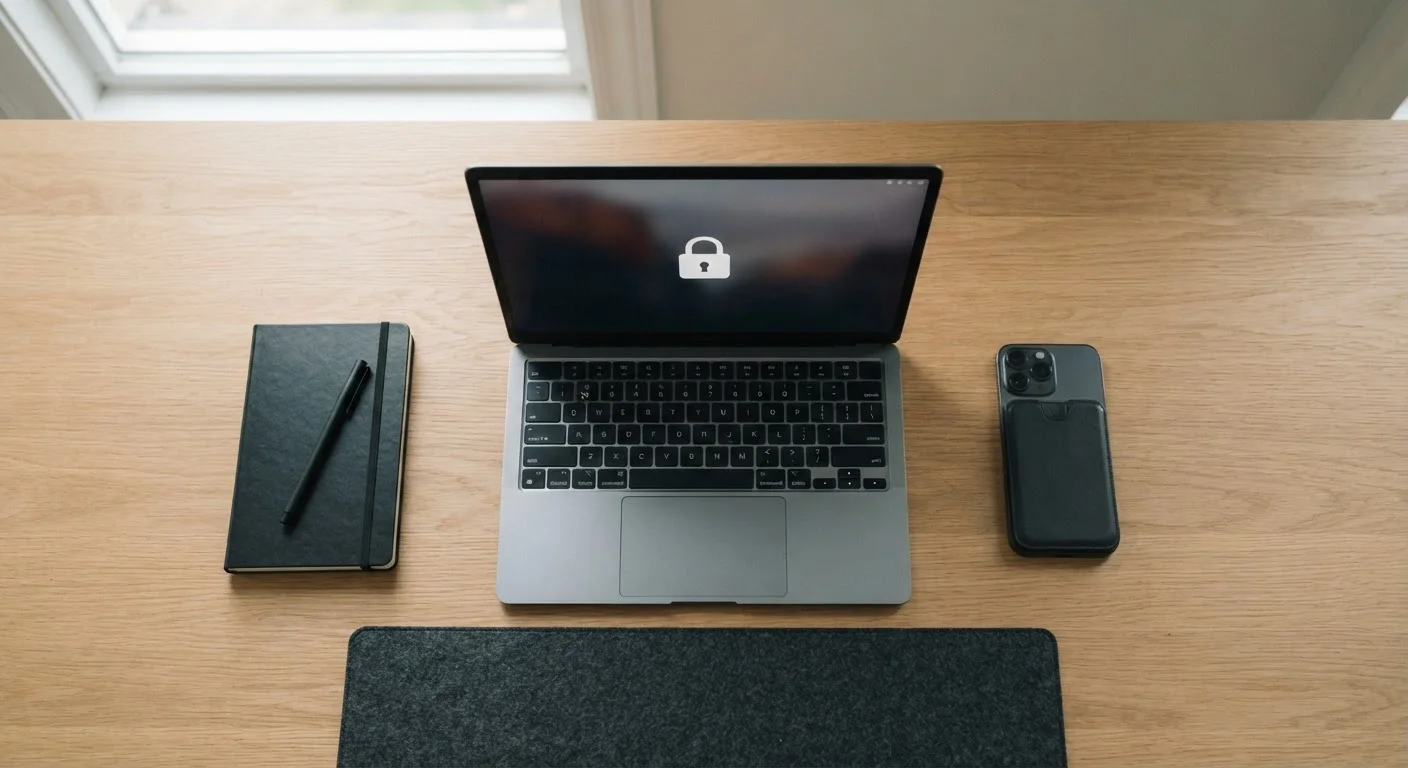
A password manager is an app — on your phone, computer, or browser — that stores all your usernames and passwords in one encrypted digital vault. Instead of remembering dozens of passwords, you remember one: the master password that unlocks the vault. Everything inside stays scrambled and unreadable to anyone who doesn't have that key.
Think of it as a locked filing cabinet for credentials. You keep the only key, and every login you've ever created lives neatly inside. Many managers also automatically fill in your username and password when you visit a site, which saves time and reduces the temptation to reuse simple passwords.
Master password
The single password you create to unlock your password manager vault. It's the only one you need to memorize, so it should be long and unique.
Encryption
A process that scrambles data into an unreadable format. Only someone with the correct key (your master password) can unscramble it.
Zero-knowledge architecture
A design approach where the password manager company never has access to your master password or the unencrypted contents of your vault.
Vault
The secure, encrypted container inside a password manager where all your stored usernames, passwords, and other credentials are kept.
Two-factor authentication (2FA)
A security method that requires a second form of verification — like a code sent to your phone — in addition to your password.
AES-256
A widely used encryption standard considered highly secure. The '256' refers to the length of the encryption key, making it extremely difficult to crack.
How Password Managers Keep Your Credentials Safe
The security behind a password manager rests on encryption — a process that scrambles your data into an unreadable format. Most reputable managers use AES-256 encryption, the same standard used by financial institutions and government agencies. When your vault is encrypted, even if someone intercepted the data file, it would look like meaningless gibberish without your master password.
An important concept here is zero-knowledge architecture: the service provider never transmits or stores your master password. Your vault is encrypted on your device before it ever reaches their servers. That means the company itself cannot read your passwords — and neither can anyone who compromises their servers alone.
Create a Passphrase, Not Just a Password
When creating your master password, use a passphrase — a sequence of four or more unrelated words, such as 'purple-anvil-river-clock.' Passphrases are easier to remember than random characters but are much harder for automated programs to guess. Avoid using names, dates, or phrases from songs or books.
Pairing your password manager with two-factor authentication adds a second layer — even if someone learns your master password, they still can't get in without a second verification step.
Types of Password Managers
Not all password managers work the same way. Understanding the main categories helps you pick an approach that fits your habits:
- Cloud-based managers store an encrypted copy of your vault on the provider's servers and sync it across all your devices. This is the most convenient option for people who use multiple devices.
- Local (offline) managers keep your vault only on your device, giving you full control but requiring manual steps to use it on a second device. This appeals to users who prefer not to rely on any external server.
- Browser-built-in managers (in Chrome, Safari, Firefox, and Edge) are already available to most users and require no extra setup. They're a reasonable starting point but generally offer fewer features and are tied to a single browser ecosystem.
For most everyday users, a cloud-based dedicated manager strikes the best balance between security and convenience. See how password management fits into broader digital organization in our guide to organizing your digital life.
What to Consider Before Choosing One
With several options available, focus on these practical factors rather than marketing claims:
- Independent security audits
- Look for managers that publish results from third-party security audits. This signals a willingness to have their practices scrutinized by outside experts.
- Encryption standards
- Confirm the manager uses a well-established algorithm (AES-256 is the common benchmark) and that zero-knowledge architecture is explicitly stated.
- Device and platform compatibility
- Make sure it works on every device and browser you use — iOS, Android, Windows, Mac, and your preferred browser.
- Recovery options
- Review what happens if you forget your master password. Emergency access and recovery keys should be set up before you need them.
- Free vs. paid tiers
- Free tiers can be fully functional. Paid plans often add features like encrypted file storage, priority support, or family sharing. Evaluate whether those extras are worth the cost for your situation.
Never Store Your Master Password in the Vault
It may seem convenient, but storing your master password inside the manager itself creates a circular lock-out problem — if you forget the master password, you can't get in to retrieve it. Write it down on paper and store it somewhere physically secure, like a locked drawer or a home safe.
Protecting your passwords is closely connected to your broader digital privacy. Our article on privacy settings most people never touch covers additional controls worth reviewing.
Getting Set Up: Your First Steps
Starting with a password manager doesn't require changing everything overnight. A gradual approach is more sustainable:
- Choose a manager and create your account. Pick one that meets the criteria above. When prompted for a master password, create a long passphrase — four or more random words strung together is both memorable and strong.
- Enable two-factor authentication on the manager itself. This is the single most important step you can take beyond a strong master password.
- Save credentials as you log in. Instead of bulk-importing all passwords at once, let the manager capture each login as you use it naturally over the coming days.
- Prioritize high-value accounts first. Update your email, financial accounts, and any account tied to payment information to long, randomly generated passwords right away.
- Set up a recovery method. Note your recovery key or designate an emergency contact before you need it.
Once these habits are in place, managing your online accounts becomes significantly less stressful. You'll also find it easier to act on other digital security steps — like the broader privacy improvements covered in our guide to digital privacy settings.