
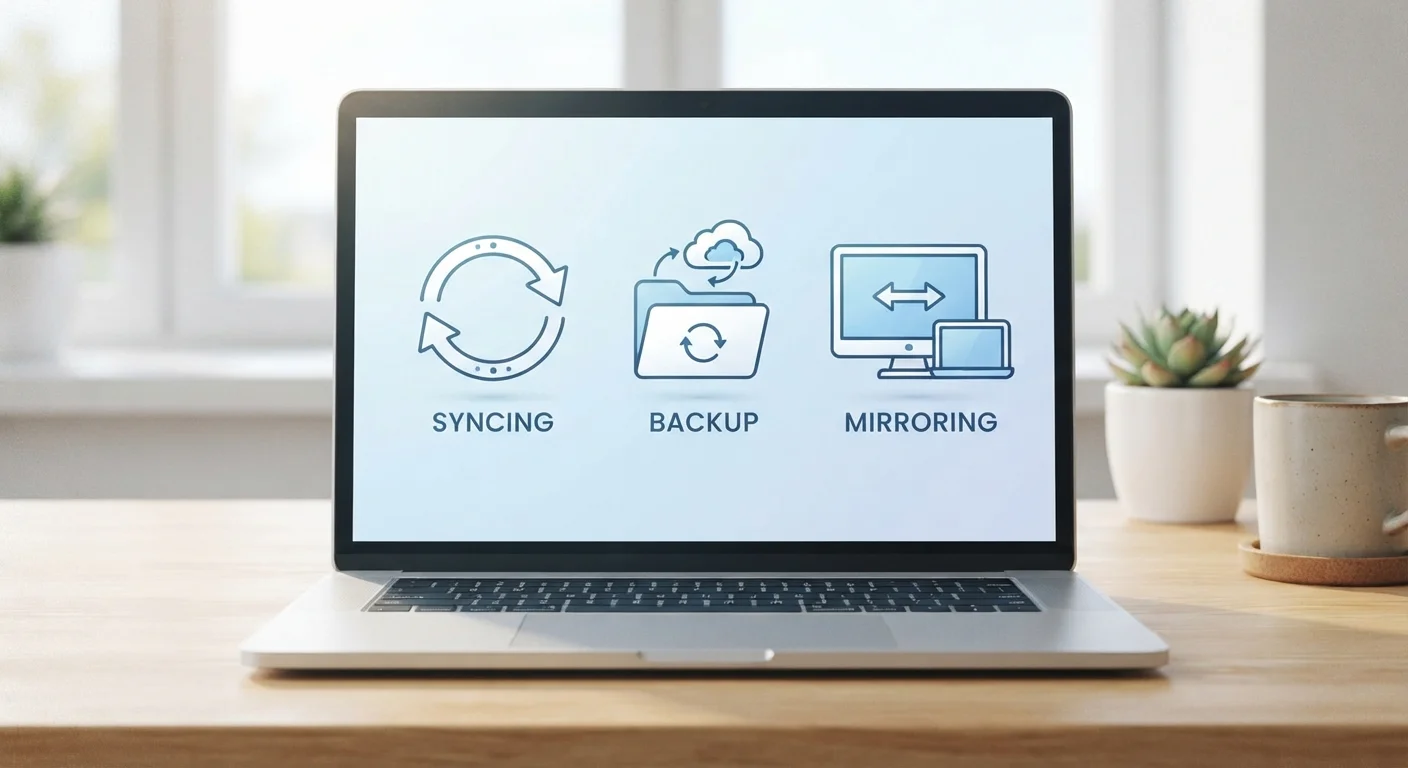
Why the Confusion Exists
The terms sync, backup, and mirror all involve copying data somewhere — and that surface similarity is exactly why people mix them up. Services like iCloud, Google Drive, and Dropbox blur the lines further by blending sync features with limited backup-like versioning, making it genuinely hard to know what's really happening to your files.
Getting this wrong has real consequences. Many people discover that their cloud sync deleted a file from every device simultaneously — because that's exactly what sync is designed to do. Understanding the distinction isn't just tech trivia; it's the foundation of a sound personal data strategy. You can learn more about managing your digital files holistically in our guide to organizing your digital life.
What Syncing Actually Does
Syncing means keeping the same version of a file consistent across multiple devices or locations. When you edit a document on your laptop, sync pushes that change to your phone, tablet, and any other connected device. The goal is continuity — so your latest version is always wherever you are.
The critical thing to understand: sync is not a backup. If you delete a file, that deletion syncs everywhere. If a file becomes corrupted, the corrupted version replaces the good one on every synced device. Some sync services retain version history for a limited window (often 30 to 180 days depending on the service and plan), which can help in emergencies — but that's a secondary feature, not the primary function.
Don't Rely on Sync Alone
If a cloud sync service is the only place your files live, you don't have a backup — you have one copy stored somewhere else. Set up a dedicated backup solution separately, even if it's just an external hard drive you update weekly. The few minutes this takes is far less painful than recovering from data loss without one.
Sync is best used for: Active working files, documents you edit regularly, and content you need available on multiple devices without manual transfers.
What Backing Up Actually Does
Backup creates a separate, independent copy of your data at a specific point in time. Unlike sync, a proper backup is not automatically updated every time you change something — it captures a snapshot, which is precisely its value. If your laptop is stolen, your hard drive fails, or you accidentally delete a year's worth of photos, a backup lets you roll back to a known good state.
Good backup practice generally follows what's called the 3-2-1 rule: keep three copies of your data, on two different types of storage media, with one copy stored off-site (or in the cloud). Backup software typically runs on a schedule — hourly, daily, or weekly — rather than continuously.
| Syncing | Backing Up | Mirroring | |
|---|---|---|---|
| Primary purpose | Access across devices | Recovery from data loss | Hardware redundancy |
| Update frequency | Continuous / real-time | Scheduled (hourly, daily) | Continuous / real-time |
| Recovers deleted files? | Limited (version history only) | Yes, from snapshot | No — deletion mirrors instantly |
| Protects against hardware failure? | Partially | Yes | Yes |
| Protects against accidental deletion? | Limited | Yes | No |
| Typical user context | Everyday consumers | Everyone (essential) | Power users, servers, NAS |
The key advantage of backup over sync is independence. Your backup copy doesn't know or care what happened to your primary data. That isolation is what makes recovery possible.
What Mirroring Actually Does
Mirroring creates an exact, real-time duplicate of a storage drive or system — every file, folder, and deletion. It's most commonly used in servers and enterprise environments where instant failover matters: if one drive fails, the mirror immediately takes over without downtime.
Here's the catch that surprises many people: because mirroring is exact and real-time, it also replicates mistakes instantly. Delete the wrong folder? The mirror deletes it too. A virus corrupts your files? The mirror is corrupted just as fast. Mirroring protects against hardware failure, not against human error or data corruption — which are far more common causes of data loss for everyday users.
For most consumers, mirroring is not a tool you'll set up yourself; it's a feature built into NAS (network-attached storage) devices or managed by IT systems. But understanding it helps you recognize what your tools actually protect against.
How to Use All Three Wisely
The strongest data protection strategy uses all three approaches for what each does best:
- Sync your active working files so they're always current and accessible across devices.
- Back up your important data — photos, documents, projects — on a regular schedule to an external drive and a separate cloud service.
- Mirror if you're running local storage that needs to stay online continuously, or if you manage a NAS device at home.
Think of it this way: sync is about access, backup is about recovery, and mirroring is about availability. None of them fully substitutes for the others. Many people use a sync service like Google Drive and mistakenly believe their files are backed up — they're not, at least not in the traditional sense.
If you use financial apps alongside your file management tools, it's worth knowing how those platforms handle your data too — our article on digital money-tracking tools and their limitations covers that ground clearly.